

大致了解了Blazor和MAUI之后,尝试创建一个.NET MAUI Blazor应用。
需要注意的是: 虽然都叫MAUI,但.NET MAUI与.NET MAUI Blazor 并不相同,MAUI还是以xaml为主,而MAUI Blazor则是以razor为主。
这个系列还是以MAUI Blazor为主,要创建一个MAUI Blazor应用,需要安装Visual Studio 2022 17.3 或更高版本,并在安装程序上,勾选.NET Multi-platform App UI 开发!最好是升级到最新的.NET 7。

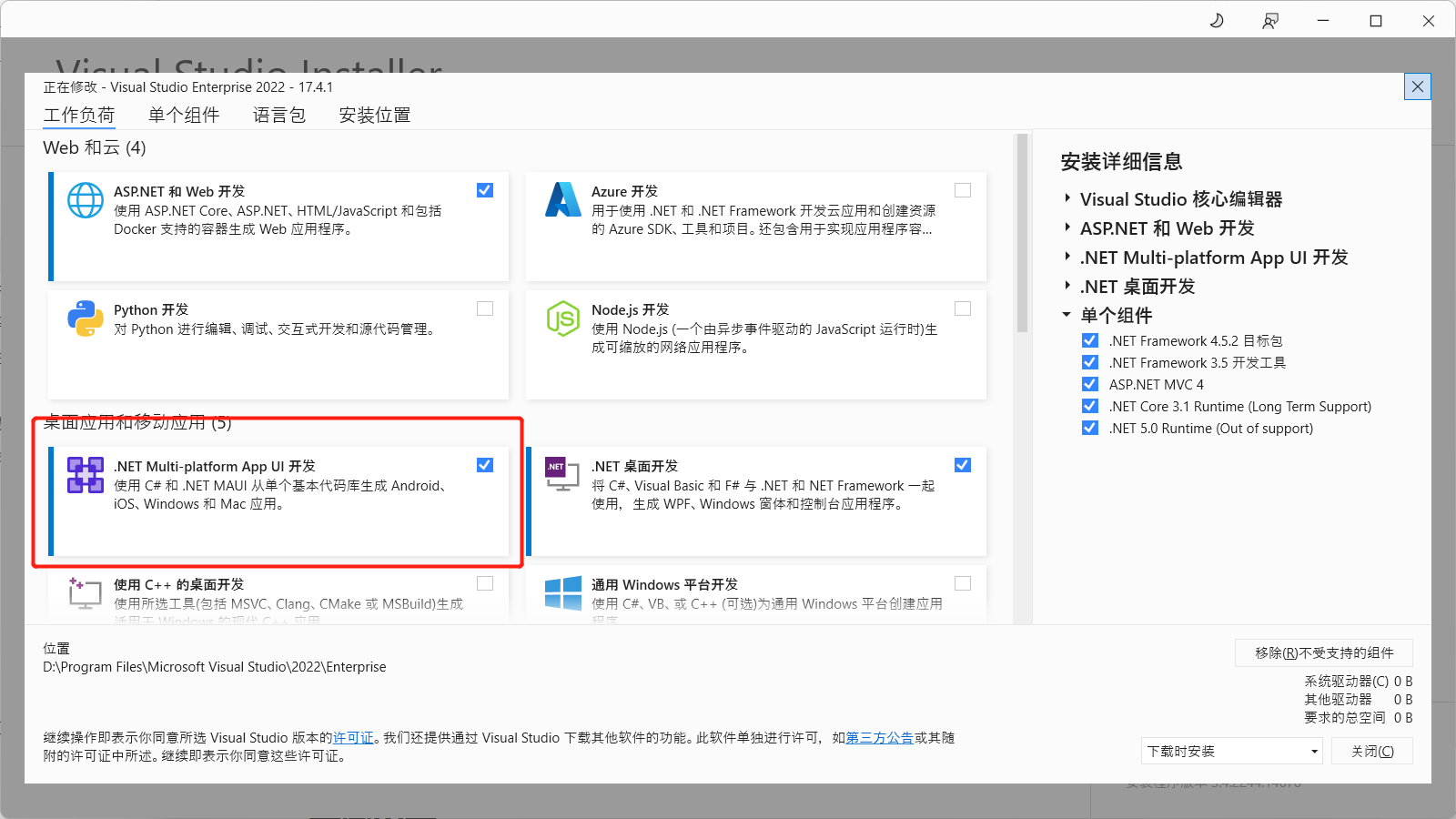
创建.NET MAUI Blazor应用
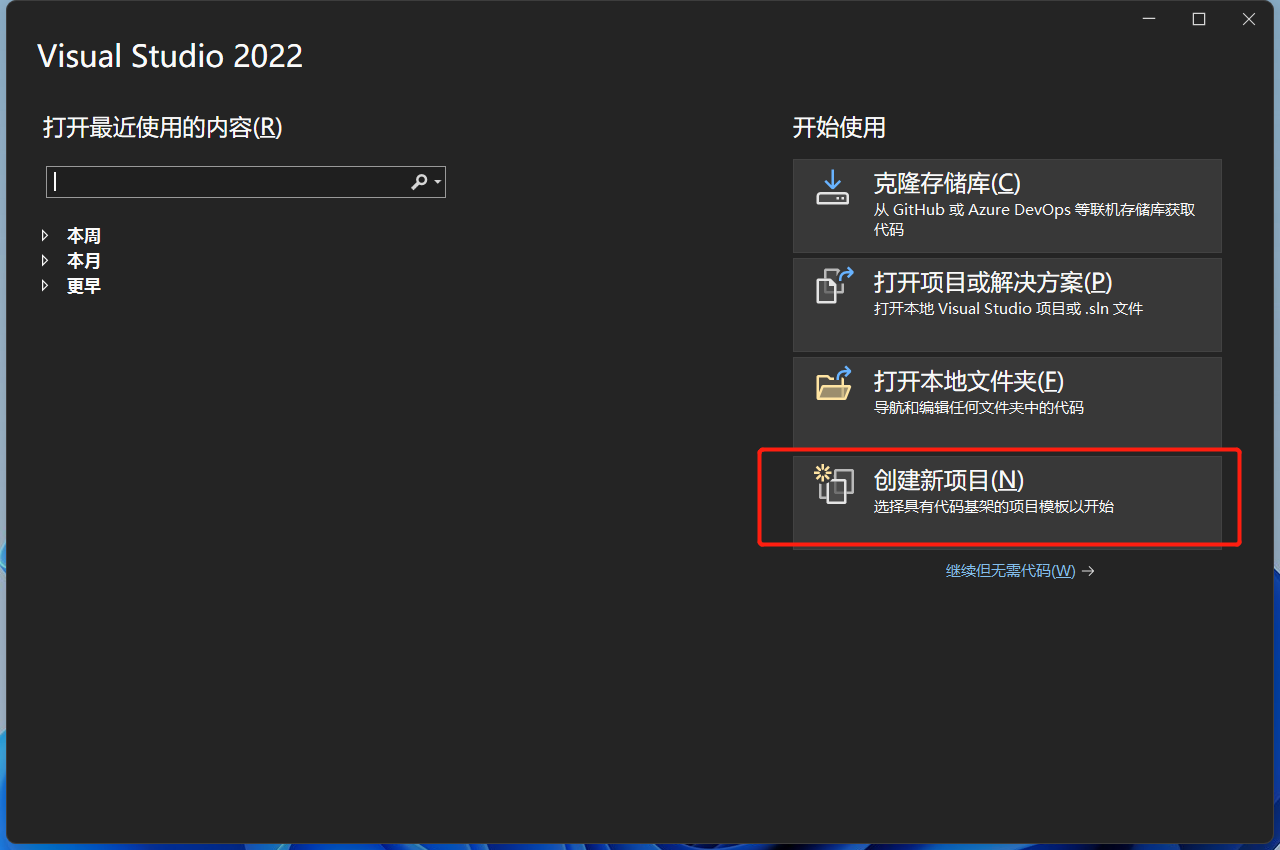
打开Visual Studio 2022,选择创建新项目
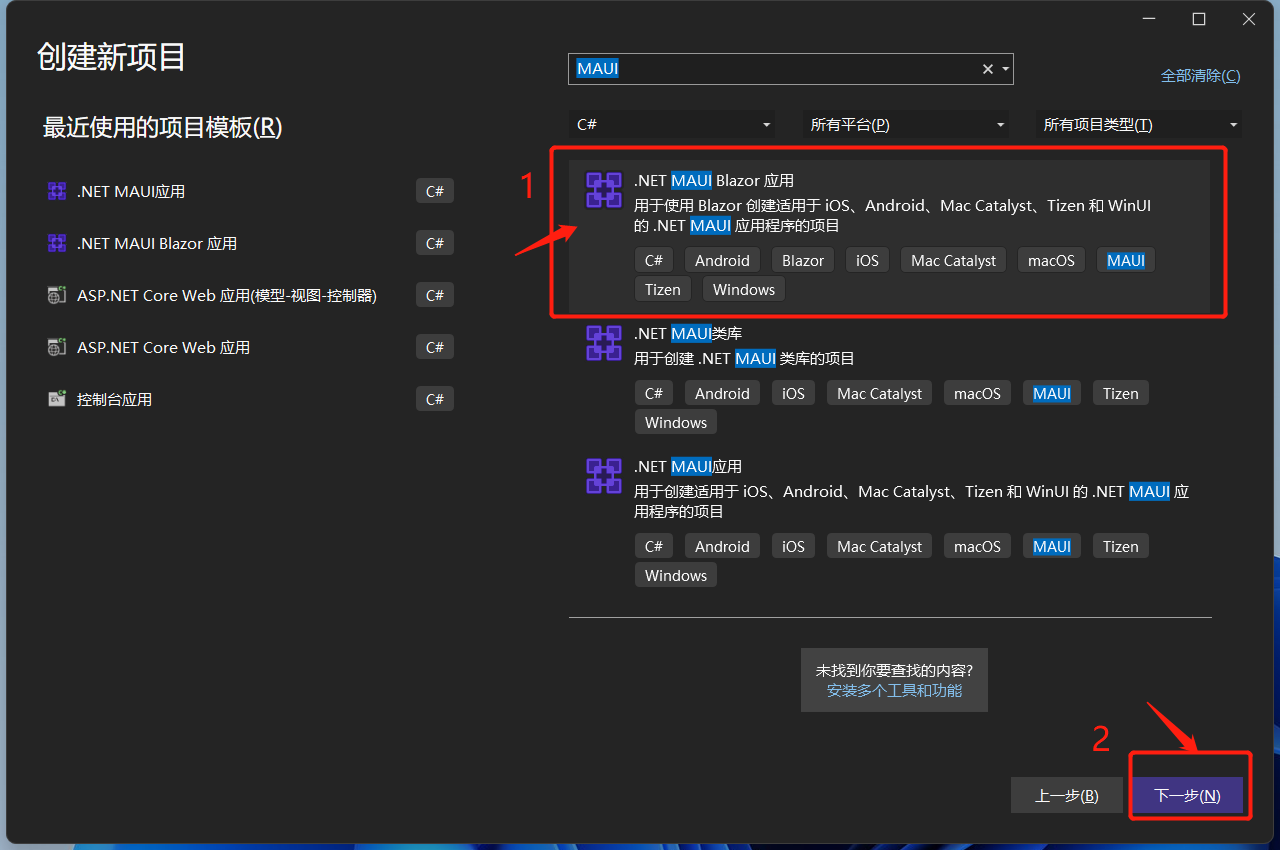
在搜索框输入MAUI,选择.NET MAUI Blazor应用,点下一步!
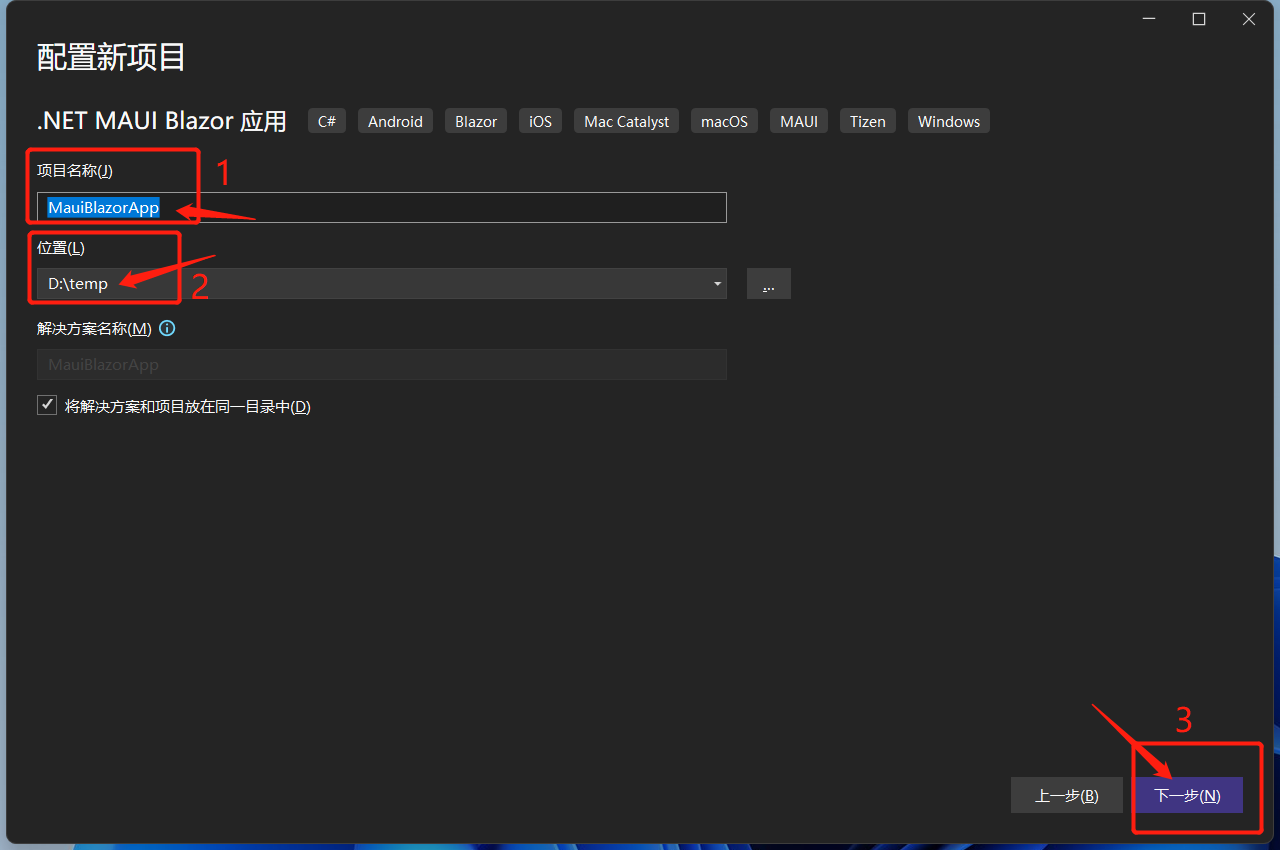
给项目起一个好听的名字,选择项目存在的位置,点下一步!
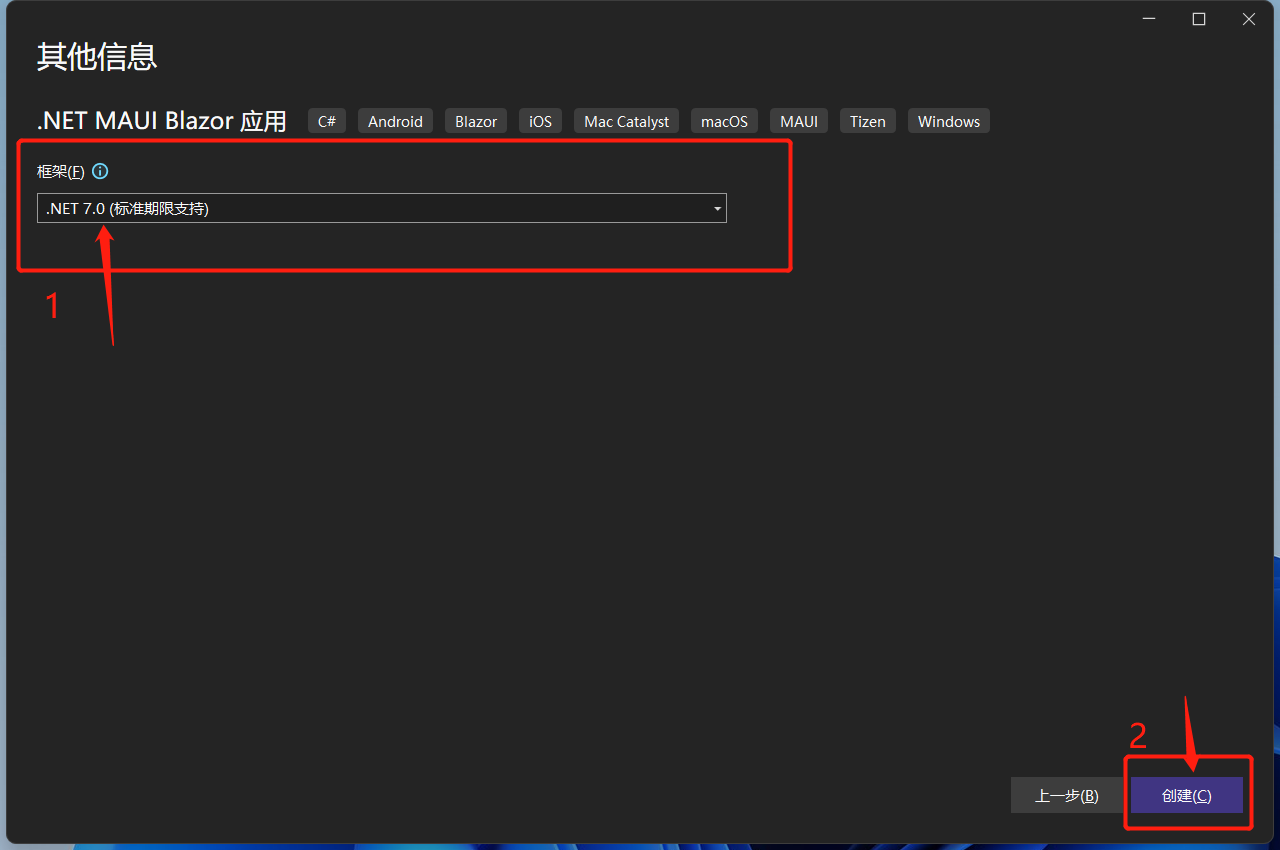
选择目标框架,这里选择的是.NET 7,点击创建。
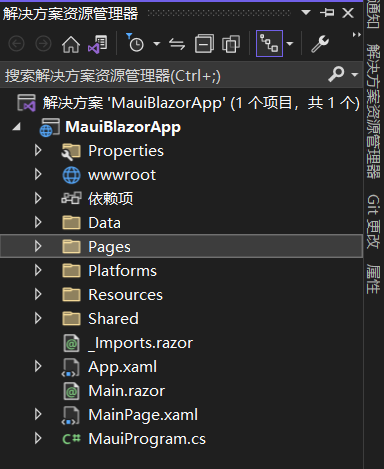
等待创建项目及其依赖项还原。完成后的目录结构如下:
.NET MAUI Blazor 需要注意的地方
.NET MAUI Blazor 运行在WebView2上,WebView2是微软推出的新一代用于桌面端混合开发的解决方案。它可以让本地应用程序(WinForm、WPF、WinUI、Win32)、移动应用程序(MAUI)轻松嵌入Web技术。WebView2 控件使用 Microsoft Edge 作为呈现引擎在客户端应用程序及App中显示 Web 内容。使用 WebView2 可以将 Web 代码嵌入到客户端应用程序及App中的不同部分,或在单个 WebView 实例中构建所有本机应用程序。
可以这么看MAUI Blazor, .NET MAUI 包含 BlazorWebView 控件,该控件运行将 Razor 组件呈现到嵌入式 Web View 中。 通过结合使用 .NET MAUI 和 Blazor,可以跨移动设备、桌面设备和 Web 重复使用一组 Web UI 组件。
说人话就是,它就是一个Hybrid App(混合应用) !
调试.NET MAUI Blazor
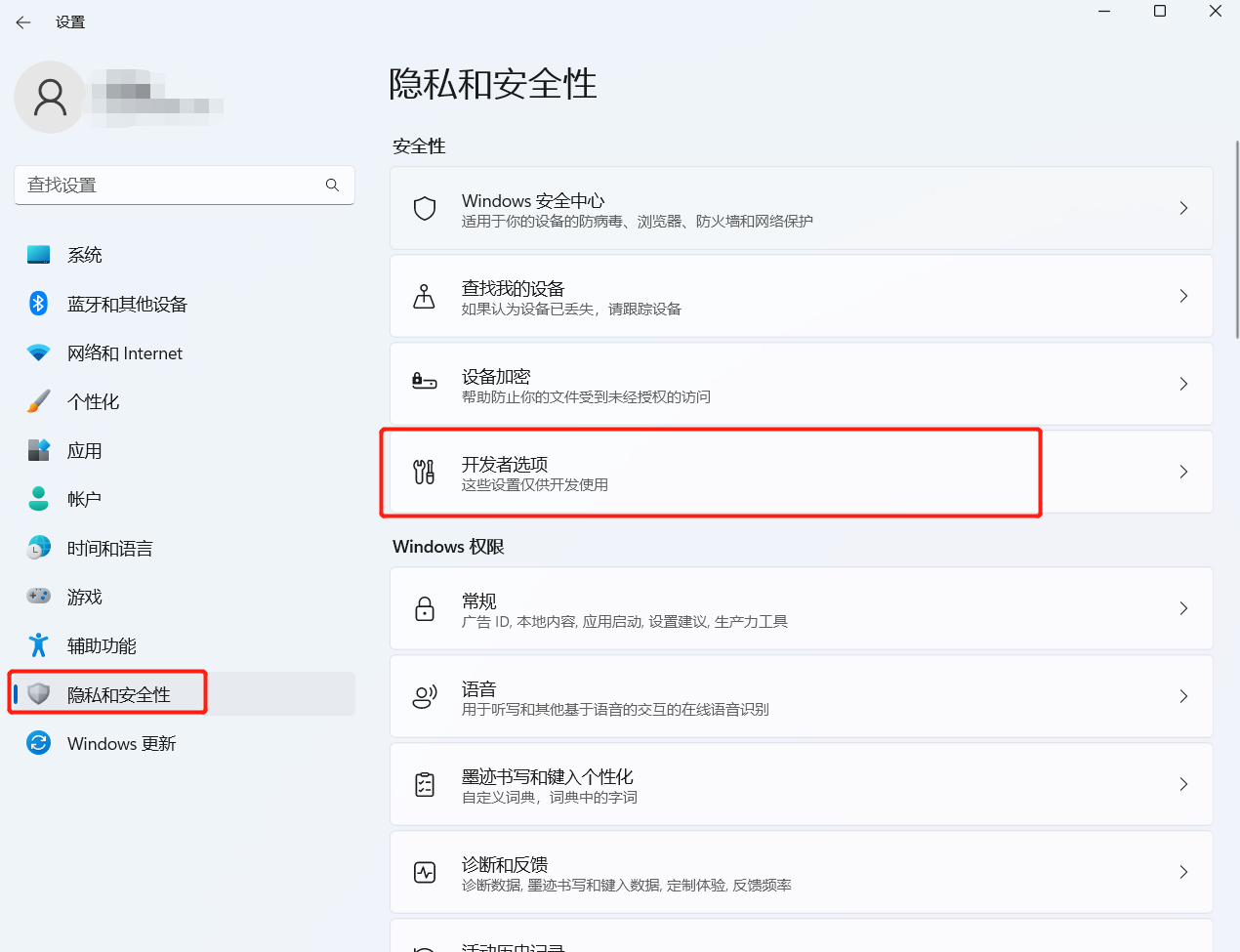
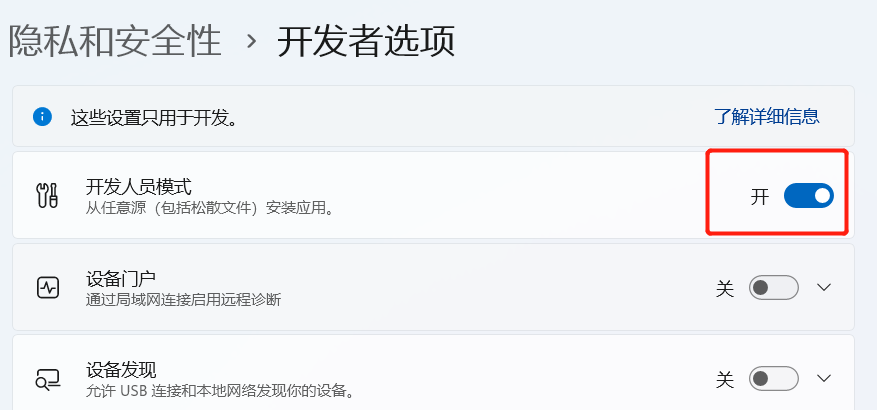
在windows上调试 MAUI Blazor应用,需要Windows 10 1809及更高版本上,并打开开发者模式。
windows 11上,位于设置->隐私和安全性->开发者选项->开发人员模式
点击Windows Machine,运行程序!
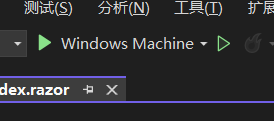
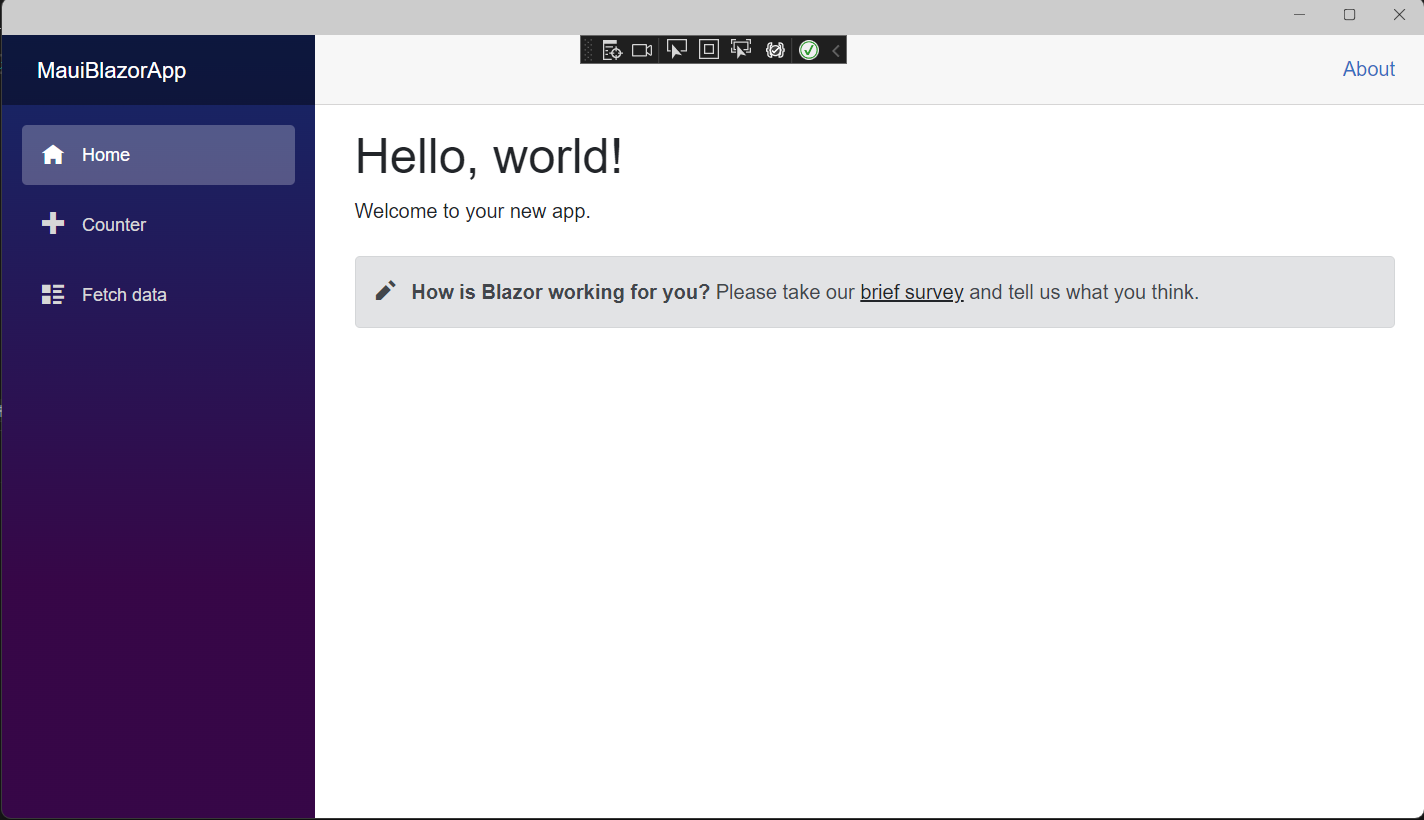
如无意外,运行成功!
这时,MAUI Blazor使用的是bootstrap样式以及open-iconic图标。
在wwwroot/index.html中也可以看到
<link rel="stylesheet" href="css/bootstrap/bootstrap.min.css" /> 现在已经有个很多基于Blazor的组件库,所以暂时把默认的bootstrap替换成第三方组件库,这里使用的是AntDesignBlazor。
使用AntDesignBlazor 组件库
安装依赖:
PM> NuGetInstall-Package AntDesign.ProLayout -Version 0.13.1 注入AntDesign
在MauiProgram.cs注入AntDesign 服务与设置基本配置,完整的MauiProgram.cs代码
using Microsoft.Extensions.Logging; using MauiBlazorApp.Data; namespace MauiBlazorApp; public static class MauiProgram { public static MauiApp CreateMauiApp() { var builder = MauiApp.CreateBuilder(); builder .UseMauiApp<App>() .ConfigureFonts(fonts => { fonts.AddFont("OpenSans-Regular.ttf", "OpenSansRegular"); }); builder.Services.AddMauiBlazorWebView(); #if DEBUG builder.Services.AddBlazorWebViewDeveloperTools(); builder.Logging.AddDebug(); #endif builder.Services.AddSingleton<WeatherForecastService>(); //注入AntDesign builder.Services.AddAntDesign(); //基本配置 builder.Services.Configure<ProSettings>(settings => { settings.NavTheme = "light"; settings.Layout = "side"; settings.ContentWidth = "Fluid"; settings.FixedHeader = false; settings.FixSiderbar = true; settings.Title = "DotNet宝藏库"; settings.PrimaryColor = "daybreak"; settings.ColorWeak = false; settings.SplitMenus= false; settings.HeaderRender= true; settings.FooterRender= false; settings.MenuRender= true; settings.MenuHeaderRender= true; settings.HeaderHeight = 48; }); return builder.Build(); } } 配置项都写上了。参数含义从表达的意思就能看出来,不做注释了!
引入样式
打开wwwroot/index.html。由于我们使用的是AntDesign,所以需要改造下index.html,修改后内容如下:
<!DOCTYPE html> <html lang="en"> <head> <meta charset="utf-8" /> <meta name="viewport" content="width=device-width, initial-scale=1.0, maximum-scale=1.0, user-scalable=no, viewport-fit=cover" /> <title>DotNet宝藏库</title> <base href="/" /> <link href="_content/AntDesign/css/ant-design-blazor.css" rel="stylesheet" /> <link rel="stylesheet" href="_content/AntDesign.ProLayout/css/ant-design-pro-layout-blazor.css" /> </head> <body> <div class="status-bar-safe-area"></div> <div id="app"> <style> html, body, #app { height: 100%; margin: 0; padding: 0; } #app { background-repeat: no-repeat; background-size: 100% auto; } .page-loading-warp { padding: 98px; display: flex; justify-content: center; align-items: center; } .ant-spin { -webkit-box-sizing: border-box; box-sizing: border-box; margin: 0; padding: 0; color: rgba(0, 0, 0, 0.65); font-size: 14px; font-variant: tabular-nums; line-height: 1.5; list-style: none; -webkit-font-feature-settings: 'tnum'; font-feature-settings: 'tnum'; position: absolute; display: none; color: #1890ff; text-align: center; vertical-align: middle; opacity: 0; -webkit-transition: -webkit-transform 0.3s cubic-bezier(0.78, 0.14, 0.15, 0.86); transition: -webkit-transform 0.3s cubic-bezier(0.78, 0.14, 0.15, 0.86); transition: transform 0.3s cubic-bezier(0.78, 0.14, 0.15, 0.86); transition: transform 0.3s cubic-bezier(0.78, 0.14, 0.15, 0.86), -webkit-transform 0.3s cubic-bezier(0.78, 0.14, 0.15, 0.86); } .ant-spin-spinning { position: static; display: inline-block; opacity: 1; } .ant-spin-dot { position: relative; display: inline-block; font-size: 20px; width: 20px; height: 20px; } .ant-spin-dot-item { position: absolute; display: block; width: 9px; height: 9px; background-color: #1890ff; border-radius: 100%; -webkit-transform: scale(0.75); -ms-transform: scale(0.75); transform: scale(0.75); -webkit-transform-origin: 50% 50%; -ms-transform-origin: 50% 50%; transform-origin: 50% 50%; opacity: 0.3; -webkit-animation: antSpinMove 1s infinite linear alternate; animation: antSpinMove 1s infinite linear alternate; } .ant-spin-dot-item:nth-child(1) { top: 0; left: 0; } .ant-spin-dot-item:nth-child(2) { top: 0; right: 0; -webkit-animation-delay: 0.4s; animation-delay: 0.4s; } .ant-spin-dot-item:nth-child(3) { right: 0; bottom: 0; -webkit-animation-delay: 0.8s; animation-delay: 0.8s; } .ant-spin-dot-item:nth-child(4) { bottom: 0; left: 0; -webkit-animation-delay: 1.2s; animation-delay: 1.2s; } .ant-spin-dot-spin { -webkit-transform: rotate(45deg); -ms-transform: rotate(45deg); transform: rotate(45deg); -webkit-animation: antRotate 1.2s infinite linear; animation: antRotate 1.2s infinite linear; } .ant-spin-lg .ant-spin-dot { font-size: 32px; width: 32px; height: 32px; } .ant-spin-lg .ant-spin-dot i { width: 14px; height: 14px; } .status-bar-safe-area { display: none; } @supports (-webkit-touch-callout: none) { .status-bar-safe-area { display: flex; position: sticky; top: 0; height: env(safe-area-inset-top); background-color: #f7f7f7; width: 100%; z-index: 1; } .flex-column, .navbar-brand { padding-left: env(safe-area-inset-left); } } @media all and (-ms-high-contrast: none), (-ms-high-contrast: active) { .ant-spin-blur { background: #fff; opacity: 0.5; } } @-webkit-keyframes antSpinMove { to { opacity: 1; } } @keyframes antSpinMove { to { opacity: 1; } } @-webkit-keyframes antRotate { to { -webkit-transform: rotate(405deg); transform: rotate(405deg); } } @keyframes antRotate { to { -webkit-transform: rotate(405deg); transform: rotate(405deg); } } </style> <div style=" display: flex; justify-content: center; align-items: center; flex-direction: column; min-height: 420px; height: 100%; "> <div class="page-loading-warp"> <div class="ant-spin ant-spin-lg ant-spin-spinning"> <span class="ant-spin-dot ant-spin-dot-spin"> <i class="ant-spin-dot-item"></i><i class="ant-spin-dot-item"></i><i class="ant-spin-dot-item"></i><i class="ant-spin-dot-item"></i> </span> </div> </div> <div style="display: flex; justify-content: center; align-items: center;"> <div class="loading-progress-text"></div> </div> </div> </div> <script src="_framework/blazor.webview.js" autostart="false"></script> <script src="_content/AntDesign/js/ant-design-blazor.js"></script> </body> </html> 加入命名空间
在_Imports.razor添加AntDesign命名空间:
@using System.Net.Http @using Microsoft.AspNetCore.Components.Forms @using Microsoft.AspNetCore.Components.Routing @using Microsoft.AspNetCore.Components.Web @using Microsoft.AspNetCore.Components.Web.Virtualization @using Microsoft.JSInterop @using MauiBlazorApp @using MauiBlazorApp.Shared //引入AntDesign @using AntDesign 设置容器
在Main.razor中加入<AntContainer />
<Router AppAssembly="@typeof(Main).Assembly"> <Found Context="routeData"> <RouteView RouteData="@routeData" DefaultLayout="@typeof(MainLayout)" /> <FocusOnNavigate RouteData="@routeData" Selector="h1" /> </Found> <NotFound> <LayoutView Layout="@typeof(MainLayout)"> <p role="alert">Sorry, there's nothing at this address.</p> </LayoutView> </NotFound> </Router> <!--设置容器--> <AntContainer /> 修改 MainLayout
- 修改
MainLayout.razor。 - 把
MainLayout.razor中默认布局删除 - 引入
AntDesign.ProLayout - 设置布局为
AntDesign.ProLayout - 构造菜单、页脚的链接、版权
- wwwroot目录下新建个文件夹
images,把提前准备好的logo放进去
完整代码如下:
@using AntDesign.ProLayout @inherits LayoutComponentBase <AntDesign.ProLayout.BasicLayout Logo="@("images/logo.png")" MenuData="MenuData"> <ChildContent> @Body </ChildContent> <FooterRender> <FooterView Copyright="MauiBlazorApp" Links="Links"></FooterView> </FooterRender> </AntDesign.ProLayout.BasicLayout> <SettingDrawer /> @code { private readonly MenuDataItem[] MenuData = { new MenuDataItem { Path = "/", Name = "Home", Key = "Home", Icon = "home" }, new MenuDataItem { Path = "/Counter", Name = "Counter", Key = "Counter", Icon = "plus" }, new MenuDataItem { Path = "/FetchData", Name = "FetchData", Key = "FetchData", Icon = "cloud" } }; private readonly LinkItem[] Links = { new LinkItem { Key = "DotNet宝藏库", Title = "基于Ant Design Blazor", Href = "https://antblazor.com", BlankTarget = true } }; } 这时可以把项目中无用的内容删除掉了,如Shared/NavMenu.razor、wwwroot/css文件。
由于删除掉了css文件夹,页面元素肯定没有样式了。那么就简单的改造下默认的几个页面!
改造默认页面
index.razor
打开Pages/Index.razor,将演示组件SurveyPrompt 删掉。顺便把Shared/SurveyPrompt.razor也删除掉。将<h1>Hello, world!</h1>
替换为Ant Design组件。
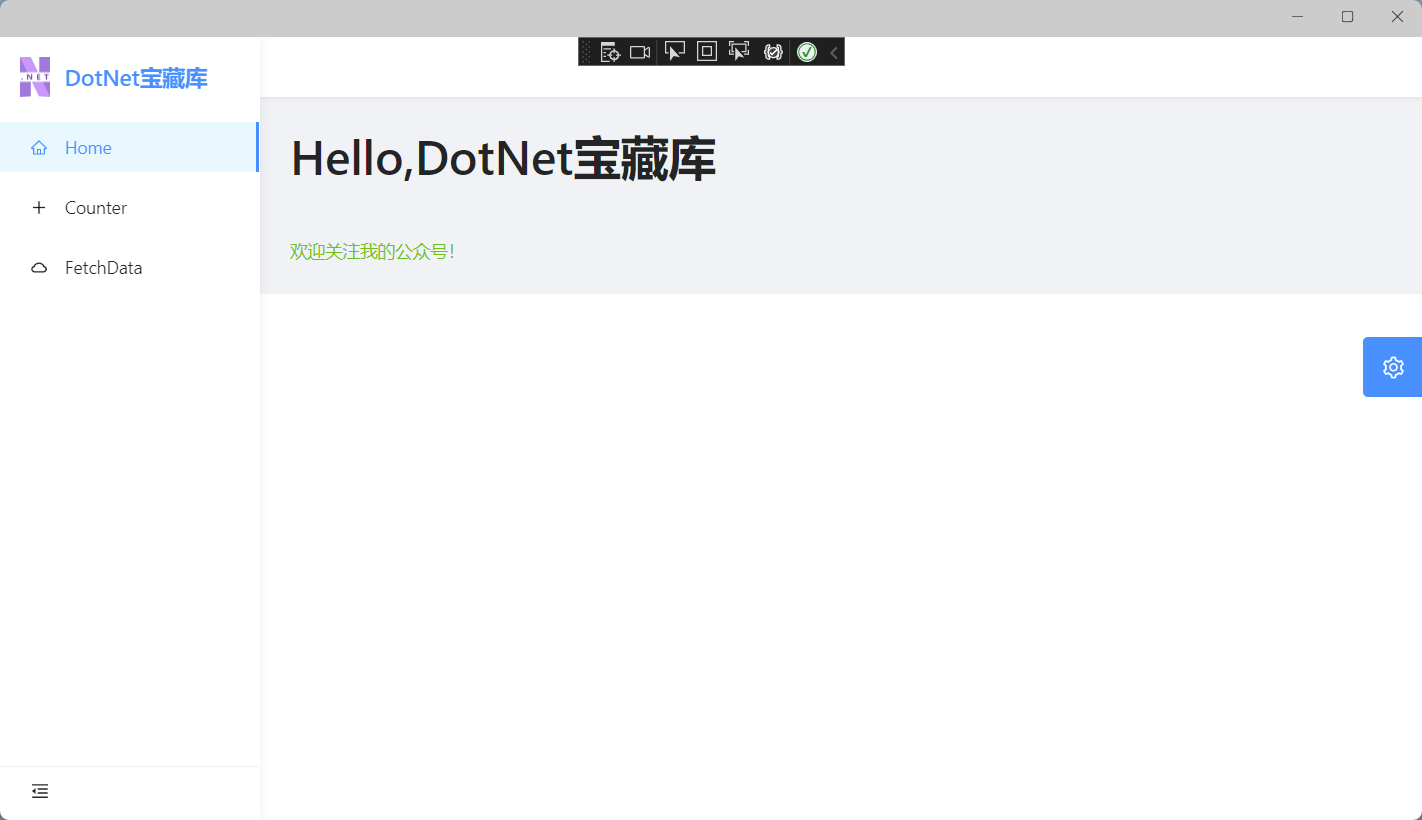
@page "/" <Title Level="1">Hello,DotNet宝藏库</Title> <br /> <Text Type="success">欢迎关注我的公众号!</Text> Counter.razor
打开 Pages/Counter.razor,将代码改为如下:
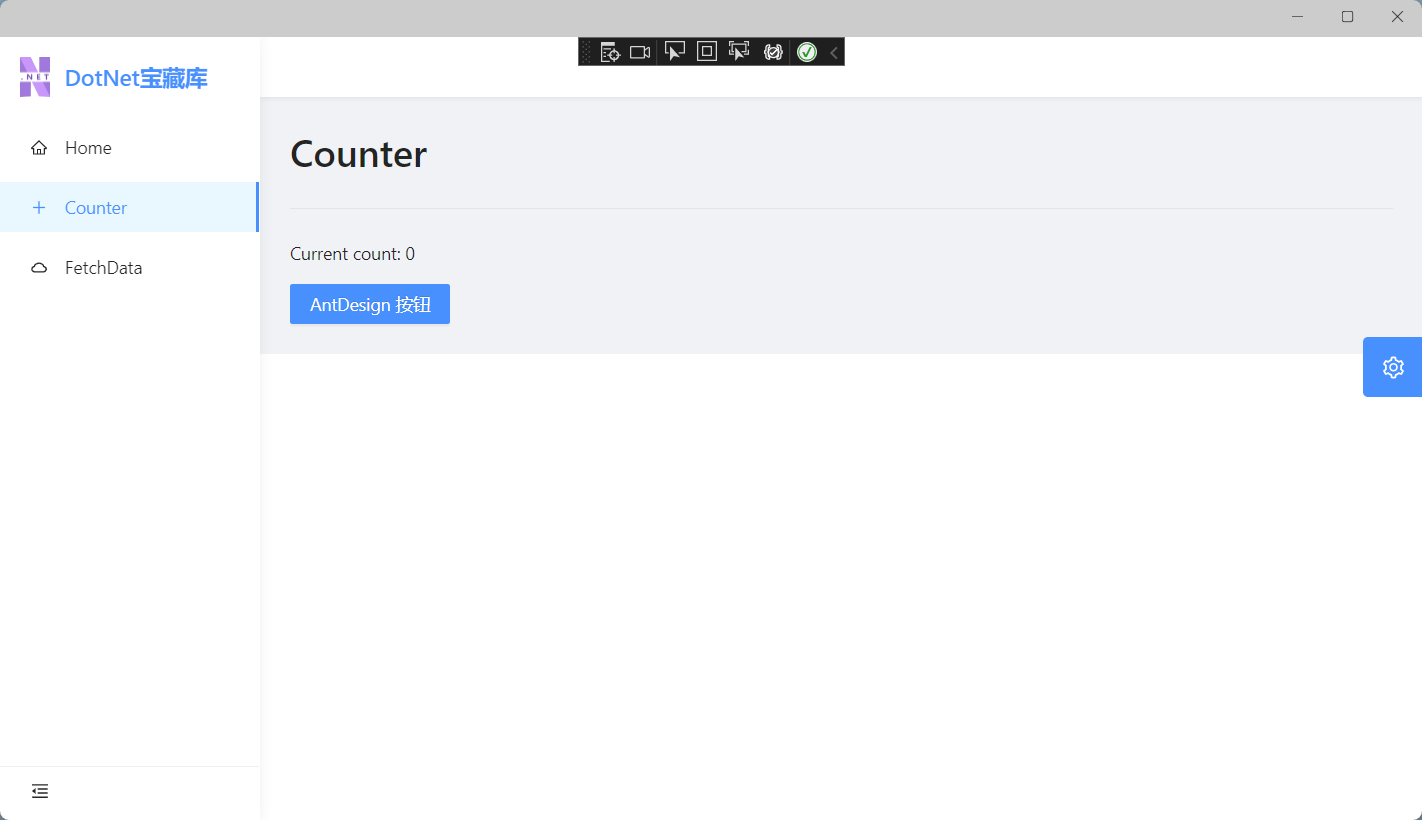
@page "/counter" <Title Level="2">HCounter</Title> <Divider /> <p role="status">Current count: @currentCount</p> <Button @onclick="IncrementCount" Type="primary">AntDesign 按钮</Button> @code { private int currentCount = 0; private void IncrementCount() { currentCount++; } } FetchData.razor
打开Pages/FetchData.razor,将数据表格替换为Ant Design,删除页面所有代码,替换为Ant Design的示例!
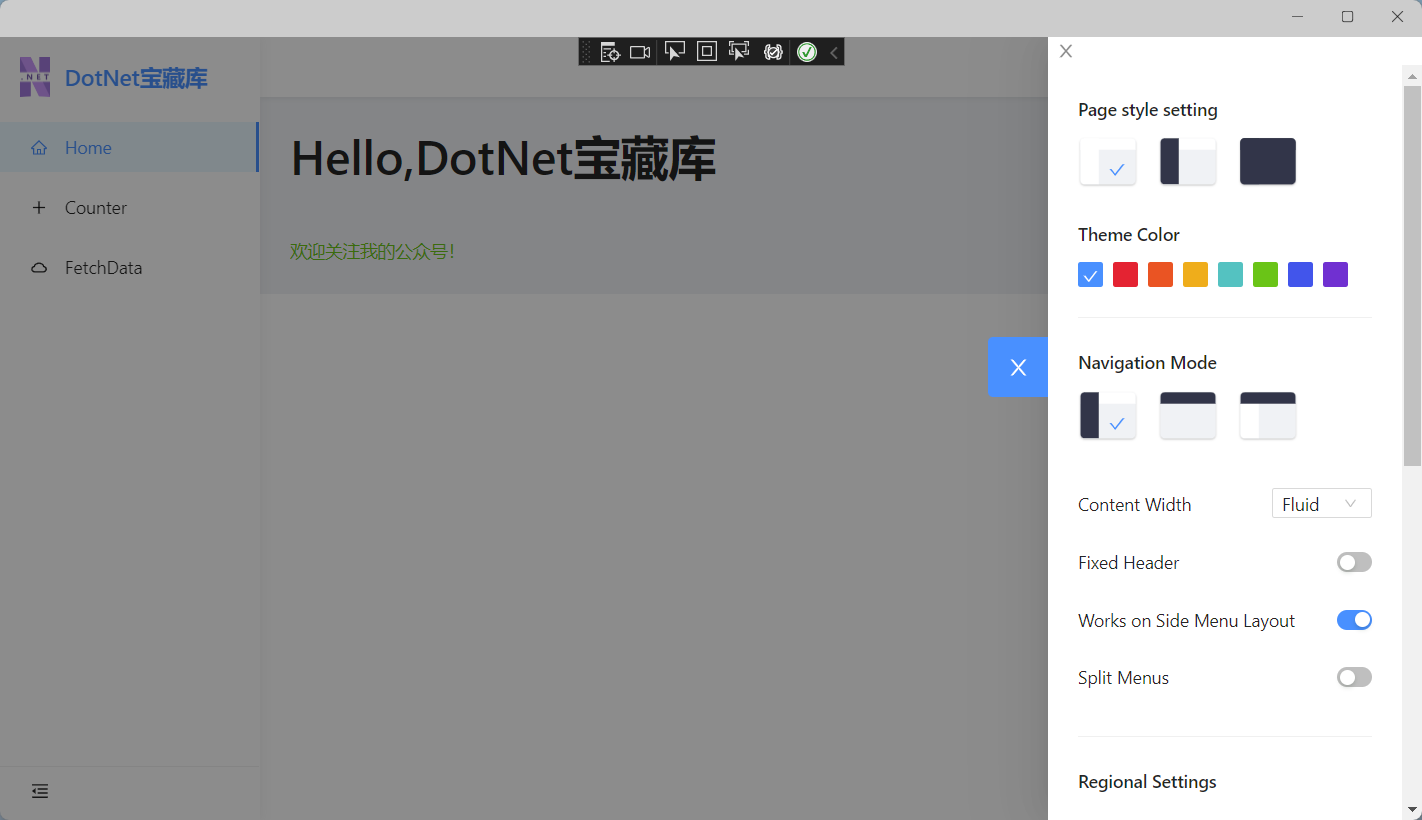
@page "/fetchdata" @using System.ComponentModel @using AntDesign.TableModels @using System.Text.Json @using MauiBlazorApp.Data @inject WeatherForecastService ForecastService <Table @ref="table" TItem="WeatherForecast" DataSource="@forecasts" Total="_total" @bind-PageIndex="_pageIndex" @bind-PageSize="_pageSize" @bind-SelectedRows="selectedRows" OnChange="OnChange"> <Selection Key="@(context.Id.ToString())" /> <PropertyColumn Property="c=>c.Id" Sortable /> <PropertyColumn Property="c=>c.Date" Format="yyyy-MM-dd" Sortable /> <PropertyColumn Property="c=>c.TemperatureC" Sortable /> <PropertyColumn Title="Temp. (F)" Property="c=>c.TemperatureF" /> <PropertyColumn Title="Hot" Property="c=>c.Hot"> <Switch @bind-Value="@context.Hot"></Switch> </PropertyColumn> <PropertyColumn Property="c=>c.Summary" Sortable /> <ActionColumn> <Space> <SpaceItem><Button Danger OnClick="()=>Delete(context.Id)">Delete</Button></SpaceItem> </Space> </ActionColumn> </Table> <br /> <p>PageIndex: @_pageIndex | PageSize: @_pageSize | Total: @_total</p> <br /> <h5>selections:</h5> @if (selectedRows != null && selectedRows.Any()) { <Button Danger Size="small" OnClick="@(e => { selectedRows = null; })">Clear</Button> @foreach (var selected in selectedRows) { <Tag @key="selected.Id" Closable OnClose="e=>RemoveSelection(selected.Id)">@selected.Id - @selected.Summary</Tag> } } <Button Type="@ButtonType.Primary" OnClick="()=> { _pageIndex--; }">Previous page</Button> <Button Type="@ButtonType.Primary" OnClick="()=> { _pageIndex++; }">Next Page</Button> @code { private WeatherForecast[] forecasts; IEnumerable<WeatherForecast> selectedRows; ITable table; int _pageIndex = 1; int _pageSize = 10; int _total = 0; protected override async Task OnInitializedAsync() { forecasts = await GetForecastAsync(1, 50); _total = 50; } public class WeatherForecast { public int Id { get; set; } [DisplayName("Date")] public DateTime? Date { get; set; } [DisplayName("Temp. (C)")] public int TemperatureC { get; set; } [DisplayName("Summary")] public string Summary { get; set; } public int TemperatureF => 32 + (int)(TemperatureC / 0.5556); public bool Hot { get; set; } } private static readonly string[] Summaries = new[] { "Freezing", "Bracing", "Chilly", "Cool", "Mild", "Warm", "Balmy", "Hot", "Sweltering", "Scorching" }; public void OnChange(QueryModel<WeatherForecast> queryModel) { Console.WriteLine(JsonSerializer.Serialize(queryModel)); } public Task<WeatherForecast[]> GetForecastAsync(int pageIndex, int pageSize) { var rng = new Random(); return Task.FromResult(Enumerable.Range((pageIndex - 1) * pageSize + 1, pageSize).Select(index => { var temperatureC = rng.Next(-20, 55); return new WeatherForecast { Id = index, Date = DateTime.Now.AddDays(index), TemperatureC = temperatureC, Summary = Summaries[rng.Next(Summaries.Length)], Hot = temperatureC > 30, }; }).ToArray()); } public void RemoveSelection(int id) { var selected = selectedRows.Where(x => x.Id != id); selectedRows = selected; } private void Delete(int id) { forecasts = forecasts.Where(x => x.Id != id).ToArray(); _total = forecasts.Length; } } 运行效果:

总结
暂无,下次再会




![洛谷 P11345 [KTSC 2023 R2] 基地简化 题解](http://www.itfaba.com/wp-content/themes/kemi/timthumb.php?src=http://www.itfaba.com/wp-content/themes/kemi/img/random/3.jpg&w=218&h=124&zc=1)
