前言
今天来学习Samples中的第二个例子:使用 MOG(Mixture of Gaussians,高斯混合模型)算法来从视频流中分离前景和背景。
示例中的代码很短:
public override void RunTest() { using var capture = new VideoCapture(MoviePath.Bach); using var mog = BackgroundSubtractorMOG.Create(); using var windowSrc = new Window("src"); using var windowDst = new Window("dst"); using var frame = new Mat(); using var fg = new Mat(); while (true) { capture.Read(frame); if (frame.Empty()) break; mog.Apply(frame, fg, 0.01); windowSrc.Image = frame; windowDst.Image = fg; Cv2.WaitKey(50); } } 先从示例代码开始学习,然后再使用WPF做一个界面。
效果:
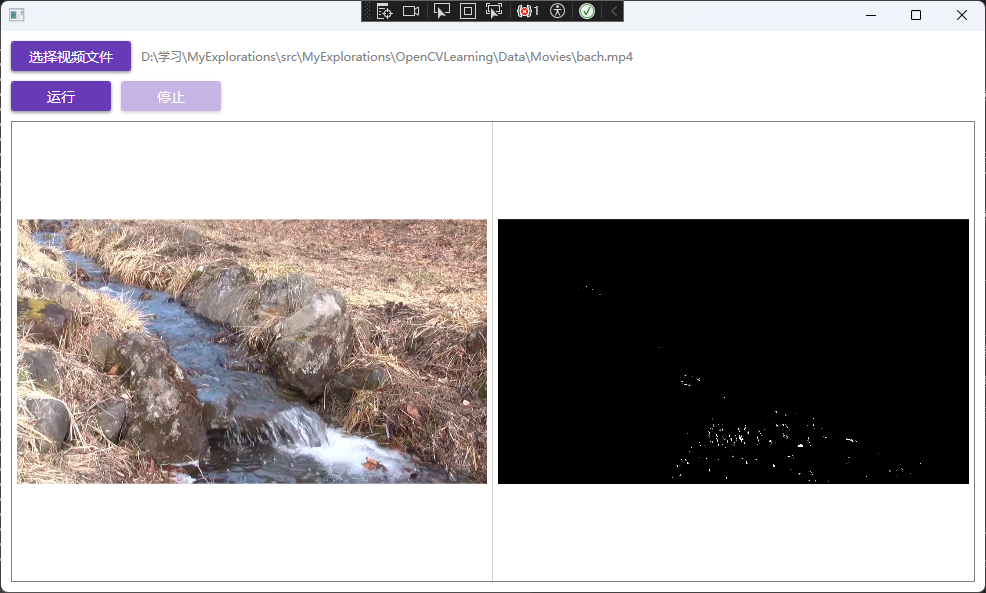
就这张效果图你可能不清楚在干嘛,但是一看动态的效果图你大概就懂分离前景和背景是什么意思了。
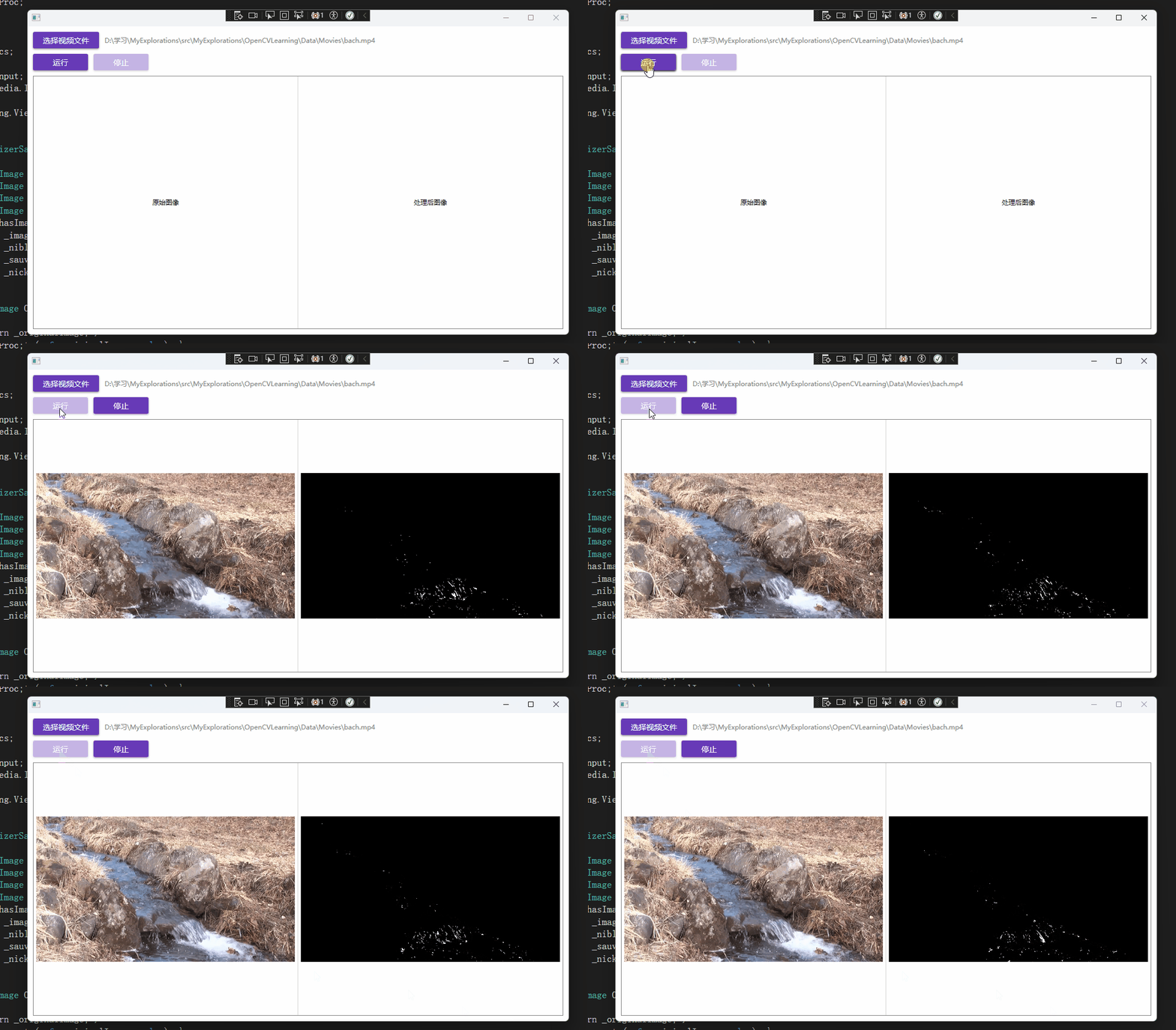
开始学习
using var capture = new VideoCapture(MoviePath.Bach); 创建了一个VideoCapture对象,这个是什么呢?
VideoCapture 是OpenCVSharp中用于视频捕获和读取的核心类,它提供了从多种视频源(包括摄像头、视频文件、网络流等)获取图像帧的统一接口。该类是计算机视觉应用中视频处理的基础组件,支持实时视频流处理和离线视频文件分析。
using var mog = BackgroundSubtractorMOG.Create(); BackgroundSubtractorMOG 是 OpenCV 中的一个背景减法算法,用于:
从视频流中分离前景和背景
检测运动物体
基于高斯混合模型(Mixture of Gaussians)进行背景建模
mog.Apply(frame, fg, 0.01); // 对每一帧应用背景减法 其中:
frame 是输入的视频帧
fg 是输出的前景掩码
0.01 是学习率参数
BackgroundSubtractorMOG又是什么呢?
BackgroundSubtractorMOG 是 OpenCvSharp 中实现基于高斯混合模型(Gaussian Mixture-based)的背景/前景分割算法的类。该类继承自 BackgroundSubtractor 抽象类,用于从视频序列中分离前景和背景对象。
高斯混合模型是一种无监督的聚类算法,它假设所有数据点都是由若干个不同的、符合高斯分布(正态分布)的模型“混合”生成的。它的目标就是找出这些高斯分布的最佳参数。刚入门学习,先当一名合格的掉包侠,知道这些算法在哪些场景下可以用到就行了,基本上都已经封装好了。
/// <summary> /// Creates mixture-of-gaussian background subtractor /// </summary> /// <param name="history">Length of the history.</param> /// <param name="nMixtures">Number of Gaussian mixtures.</param> /// <param name="backgroundRatio">Background ratio.</param> /// <param name="noiseSigma">Noise strength (standard deviation of the brightness or each color channel). 0 means some automatic value.</param> /// <returns></returns> public static BackgroundSubtractorMOG Create( int history = 200, int nMixtures = 5, double backgroundRatio = 0.7, double noiseSigma = 0) { NativeMethods.HandleException( NativeMethods.bgsegm_createBackgroundSubtractorMOG( history, nMixtures, backgroundRatio, noiseSigma, out var ptr)); return new BackgroundSubtractorMOG(ptr); } Creat方法中提供了一组参数的默认值。
参数说明:
history: 历史帧长度,默认为 200 帧,较长的历史可以提供更稳定的背景模型,但会增加计算成本和内存使用。
nMixtures: 高斯混合数量,默认为 5,更多的混合成分可以更好地建模复杂背景,但会增加计算复杂度。
backgroundRatio: 背景比例,默认为 0.7,该值决定了哪些高斯成分被视为背景的一部分。
noiseSigma: 噪声强度(亮度或每个颜色通道的标准差),0 表示自动值,用于处理图像中的噪声,值越大对噪声的容忍度越高。
/// <summary> /// the update operator that takes the next video frame and returns the current foreground mask as 8-bit binary image. /// </summary> /// <param name="image"></param> /// <param name="fgmask"></param> /// <param name="learningRate"></param> public virtual void Apply(InputArray image, OutputArray fgmask, double learningRate = -1) { if (image is null) throw new ArgumentNullException(nameof(image)); if (fgmask is null) throw new ArgumentNullException(nameof(fgmask)); image.ThrowIfDisposed(); fgmask.ThrowIfNotReady(); NativeMethods.HandleException( NativeMethods.video_BackgroundSubtractor_apply(ptr, image.CvPtr, fgmask.CvPtr, learningRate)); fgmask.Fix(); GC.KeepAlive(this); GC.KeepAlive(image); GC.KeepAlive(fgmask); } Apply方法更新背景模型并返回前景掩码。
参数:
image: 输入的视频帧
fgmask: 输出的前景掩码(8位二进制图像)
learningRate: 学习率,-1 表示使用自动学习率
这个例子中只用到了返回前景图像,我们应该也能猜得到肯定也能返回背景图像。
/// <summary> /// computes a background image /// </summary> /// <param name="backgroundImage"></param> public virtual void GetBackgroundImage(OutputArray backgroundImage) { if (backgroundImage is null) throw new ArgumentNullException(nameof(backgroundImage)); backgroundImage.ThrowIfNotReady(); NativeMethods.HandleException( NativeMethods.video_BackgroundSubtractor_getBackgroundImage(ptr, backgroundImage.CvPtr)); GC.KeepAlive(this); GC.KeepAlive(backgroundImage); backgroundImage.Fix(); } 功能: 计算并返回当前背景图像
参数:
backgroundImage: 输出的背景图像
做一个WPF应用
现在我们已经学习了基本用法,现在正好学习一下WPF,用WPF做一个简单应用。
根据这个示例做一个WPF应用可能需要注意的地方。
首先我们要注意的是图像的显示问题,在示例应用中是直接用Mat显示的,在WPF中显示图像一般用BitmapImage,那么这里就涉及到一个转换的问题,可以安装一下OpenCvSharp4.Extensions这个库,作者已经提供了一些转换方法。
private BitmapImage MatToBitmapImage(Mat mat) { // 将Mat转换为Bitmap var bitmap = mat.ToBitmap(); // 将Bitmap转换为BitmapImage var bitmapImage = new BitmapImage(); using (var stream = new System.IO.MemoryStream()) { bitmap.Save(stream, System.Drawing.Imaging.ImageFormat.Bmp); stream.Position = 0; bitmapImage.BeginInit(); bitmapImage.StreamSource = stream; bitmapImage.CacheOption = BitmapCacheOption.OnLoad; bitmapImage.EndInit(); bitmapImage.Freeze(); } return bitmapImage; } 我们还注意到示例应用是一个死循环,没有办法停止,我们可以增加一个CancellationTokenSource来进行控制。
private CancellationTokenSource _cancellationTokenSource; private async Task RunAsync() { IsProcessing = true; HasProcessedImage = true; _cancellationTokenSource = new CancellationTokenSource(); await Task.Run(() => { using var capture = new VideoCapture(VideoPath); using var mog = BackgroundSubtractorMOG.Create(); using var frame = new Mat(); using var fg = new Mat(); while (!_cancellationTokenSource.Token.IsCancellationRequested) { capture.Read(frame); if (frame.Empty()) break; mog.Apply(frame, fg, 0.01); // 将Mat转换为BitmapImage并在UI线程更新 Application.Current.Dispatcher.Invoke(() => { OriginalImage = MatToBitmapImage(frame); ProcessedImage = MatToBitmapImage(fg); }); Thread.Sleep(50); // 控制帧率 } }, _cancellationTokenSource.Token); IsProcessing = false; } 全部代码:
<UserControl x:Class="OpenCVLearning.Views.BgSubtractorMOGView" xmlns="http://schemas.microsoft.com/winfx/2006/xaml/presentation" xmlns:x="http://schemas.microsoft.com/winfx/2006/xaml" xmlns:d="http://schemas.microsoft.com/expression/blend/2008" xmlns:mc="http://schemas.openxmlformats.org/markup-compatibility/2006" xmlns:local="clr-namespace:OpenCVLearning.Views" xmlns:prism="http://prismlibrary.com/" mc:Ignorable="d" prism:ViewModelLocator.AutoWireViewModel="True" d:DesignHeight="450" d:DesignWidth="800"> <UserControl.Resources> <BooleanToVisibilityConverter x:Key="BooleanToVisibilityConverter"/> </UserControl.Resources> <Grid Margin="10"> <Grid.RowDefinitions> <RowDefinition Height="Auto"/> <RowDefinition Height="Auto"/> <RowDefinition Height="*"/> </Grid.RowDefinitions> <!-- 第一行:选择视频文件按钮和路径显示 --> <StackPanel Grid.Row="0" Orientation="Horizontal" HorizontalAlignment="Left" Margin="0,0,0,10"> <Button Content="选择视频文件" Command="{Binding SelectVideoCommand}" Width="120" Height="30" Margin="0,0,10,0"/> <TextBlock Text="{Binding VideoPath}" VerticalAlignment="Center" Foreground="Gray"/> </StackPanel> <!-- 第二行:运行和停止按钮 --> <StackPanel Grid.Row="1" Orientation="Horizontal" HorizontalAlignment="Left" Margin="0,0,0,10"> <Button Content="运行" Command="{Binding RunCommand}" Width="100" Height="30" Margin="0,0,10,0"/> <Button Content="停止" Command="{Binding StopCommand}" Width="100" Height="30"/> </StackPanel> <!-- 第三行:视频处理结果显示区域 - 分为两列 --> <Border Grid.Row="2" BorderBrush="Gray" BorderThickness="1"> <Grid> <Grid.ColumnDefinitions> <ColumnDefinition Width="*"/> <ColumnDefinition Width="*"/> </Grid.ColumnDefinitions> <!-- 左列:原始图像 --> <Border Grid.Column="0" BorderBrush="LightGray" BorderThickness="0,0,1,0" Padding="5"> <Grid> <Image Source="{Binding OriginalImage}" Stretch="Uniform" Visibility="{Binding HasProcessedImage, Converter={StaticResource BooleanToVisibilityConverter}}"/> <TextBlock Text="原始图像" HorizontalAlignment="Center" VerticalAlignment="Center" Visibility="{Binding HasNoProcessedImage, Converter={StaticResource BooleanToVisibilityConverter}}"/> </Grid> </Border> <!-- 右列:处理后图像 --> <Border Grid.Column="1" BorderBrush="LightGray" Padding="5"> <Grid> <Image Source="{Binding ProcessedImage}" Stretch="Uniform" Visibility="{Binding HasProcessedImage, Converter={StaticResource BooleanToVisibilityConverter}}"/> <TextBlock Text="处理后图像" HorizontalAlignment="Center" VerticalAlignment="Center" Visibility="{Binding HasNoProcessedImage, Converter={StaticResource BooleanToVisibilityConverter}}"/> </Grid> </Border> </Grid> </Border> </Grid> </UserControl> using Microsoft.Win32; using OpenCvSharp; using OpenCvSharp.Extensions; using Prism.Commands; using Prism.Mvvm; using System; using System.IO; using System.Threading; using System.Threading.Tasks; using System.Windows; using System.Windows.Input; using System.Windows.Media.Imaging; namespace OpenCVLearning.ViewModels { public class BgSubtractorMOGViewModel : BindableBase { private string _videoPath; private BitmapImage _originalImage; private BitmapImage _processedImage; private bool _hasProcessedImage; private bool _isProcessing; private CancellationTokenSource _cancellationTokenSource; public string VideoPath { get { return _videoPath; } set { SetProperty(ref _videoPath, value); } } public BitmapImage OriginalImage { get { return _originalImage; } set { SetProperty(ref _originalImage, value); } } public BitmapImage ProcessedImage { get { return _processedImage; } set { SetProperty(ref _processedImage, value); } } public bool HasProcessedImage { get { return _hasProcessedImage; } set { SetProperty(ref _hasProcessedImage, value); RaisePropertyChanged(nameof(HasNoProcessedImage)); } } public bool HasNoProcessedImage { get { return !_hasProcessedImage; } } public bool IsProcessing { get { return _isProcessing; } set { SetProperty(ref _isProcessing, value); RaisePropertyChanged(nameof(CanRun)); RaisePropertyChanged(nameof(CanStop)); } } public ICommand SelectVideoCommand { get; private set; } public ICommand RunCommand { get; private set; } public ICommand StopCommand { get; private set; } public BgSubtractorMOGViewModel() { SelectVideoCommand = new DelegateCommand(SelectVideo); RunCommand = new DelegateCommand(async () => await RunAsync(), CanRun).ObservesProperty(() => VideoPath).ObservesProperty(() => IsProcessing); StopCommand = new DelegateCommand(Stop, CanStop).ObservesProperty(() => IsProcessing); } private void SelectVideo() { OpenFileDialog openFileDialog = new OpenFileDialog { Filter = "视频文件|*.mp4;*.avi;*.mov;*.mkv;*.wmv;*.flv|所有文件|*.*", Title = "选择视频文件" }; if (openFileDialog.ShowDialog() == true) { VideoPath = openFileDialog.FileName; } } private bool CanRun() { return !string.IsNullOrEmpty(VideoPath) && File.Exists(VideoPath) && !IsProcessing; } private bool CanStop() { return IsProcessing; } private void Stop() { _cancellationTokenSource?.Cancel(); } private async Task RunAsync() { IsProcessing = true; HasProcessedImage = true; _cancellationTokenSource = new CancellationTokenSource(); await Task.Run(() => { using var capture = new VideoCapture(VideoPath); using var mog = BackgroundSubtractorMOG.Create(); using var frame = new Mat(); using var fg = new Mat(); while (!_cancellationTokenSource.Token.IsCancellationRequested) { capture.Read(frame); if (frame.Empty()) break; mog.Apply(frame, fg, 0.01); // 将Mat转换为BitmapImage并在UI线程更新 Application.Current.Dispatcher.Invoke(() => { OriginalImage = MatToBitmapImage(frame); ProcessedImage = MatToBitmapImage(fg); }); Thread.Sleep(50); // 控制帧率 } }, _cancellationTokenSource.Token); IsProcessing = false; } private BitmapImage MatToBitmapImage(Mat mat) { // 将Mat转换为Bitmap var bitmap = mat.ToBitmap(); // 将Bitmap转换为BitmapImage var bitmapImage = new BitmapImage(); using (var stream = new System.IO.MemoryStream()) { bitmap.Save(stream, System.Drawing.Imaging.ImageFormat.Bmp); stream.Position = 0; bitmapImage.BeginInit(); bitmapImage.StreamSource = stream; bitmapImage.CacheOption = BitmapCacheOption.OnLoad; bitmapImage.EndInit(); bitmapImage.Freeze(); } return bitmapImage; } } } 应用
我们大概知道怎么使用了之后,关键是要知道在哪些场景下可能会用到这个东西,现在我们可以配合AI去测试一下几个可能能用上的场景。
我测试了两个场景,一个是运动物体检测,另一个是背景图像转换。
运动物体检测效果:
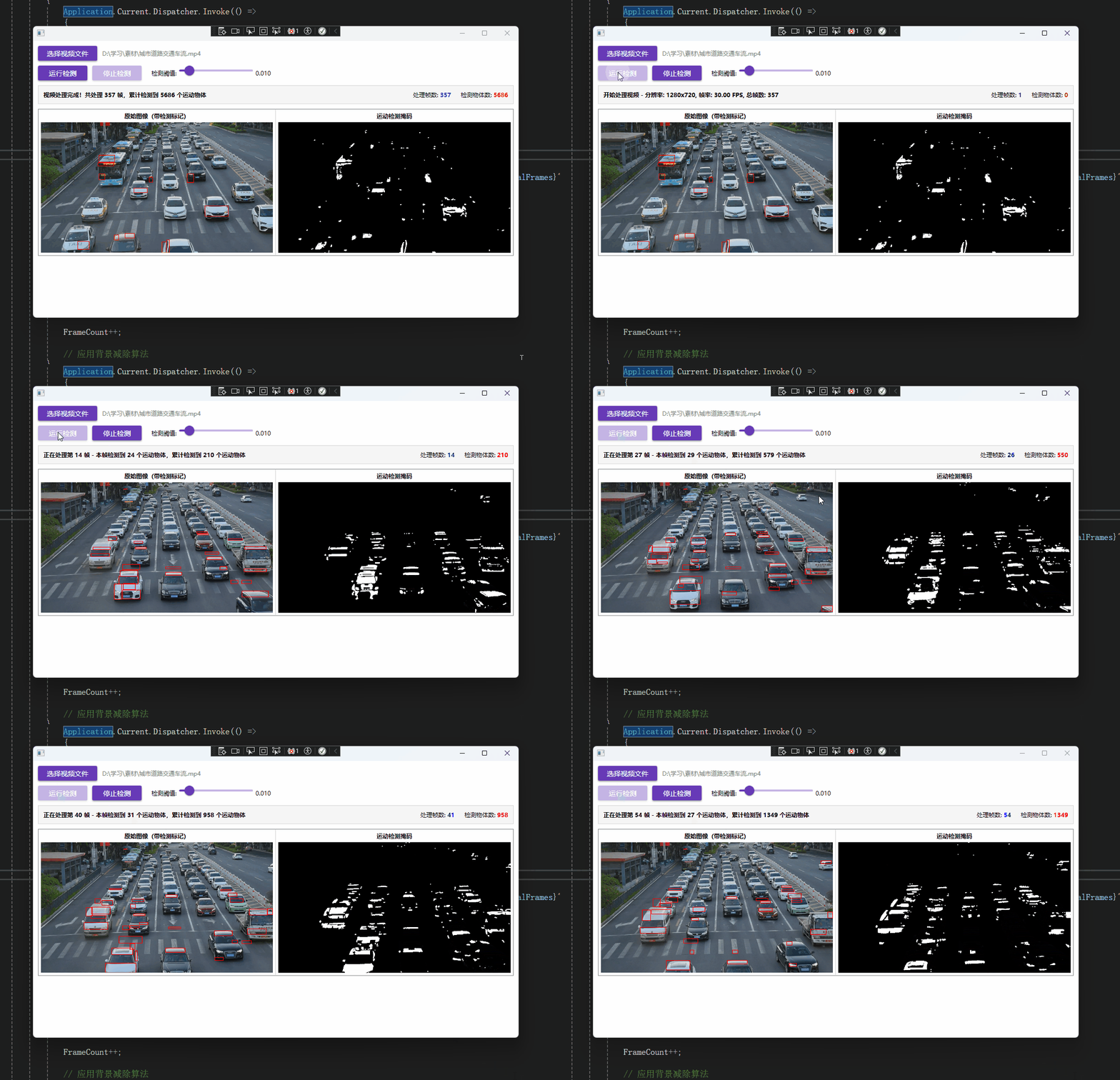
可以发现其实结果也不是很准确,也是比较一般。
背景图像转换效果:
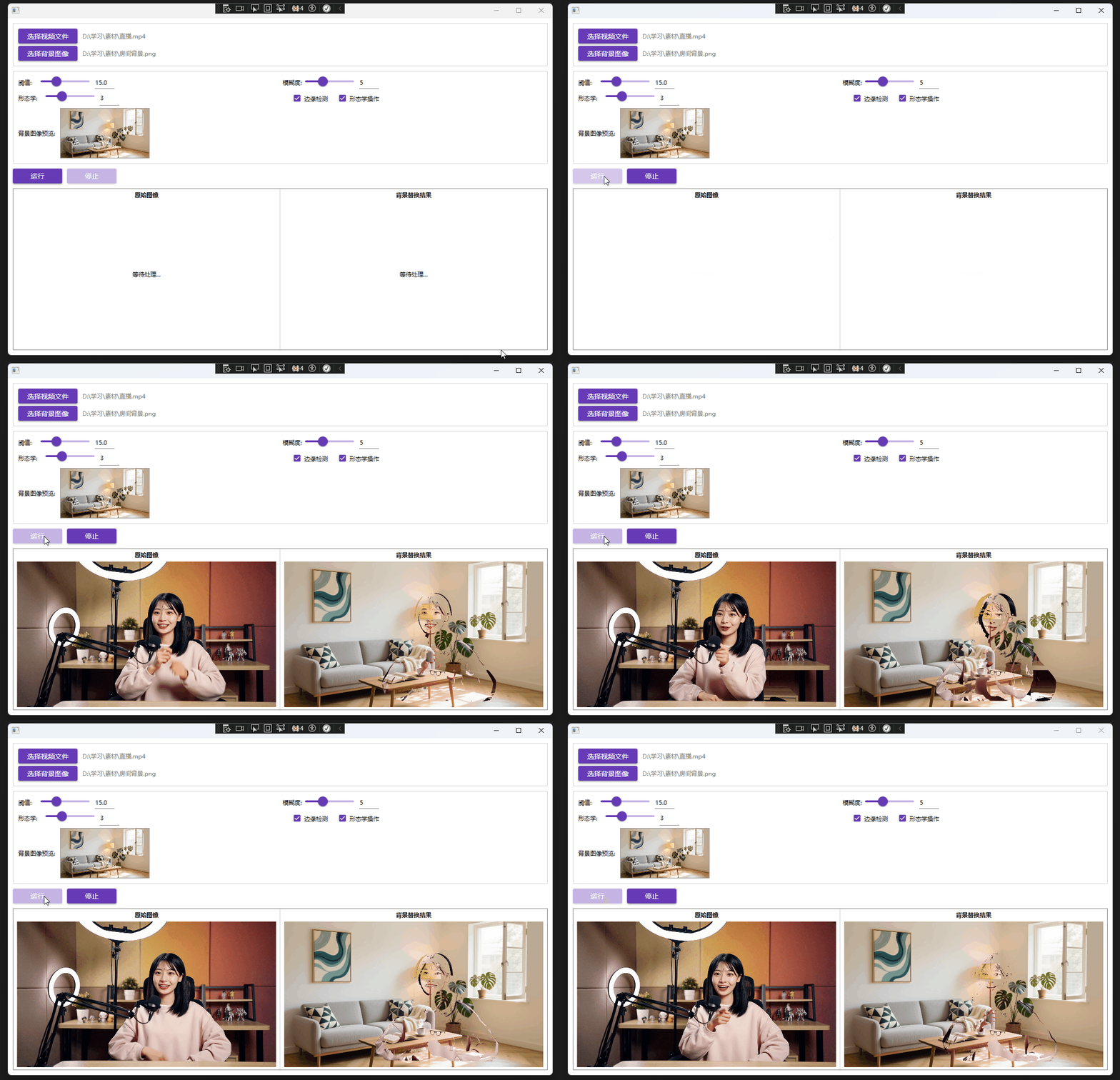
可以发现其实效果不是很好,现在直播背景图像替换可能更推荐MediaPipe Selfie Segmentation与OpenCV结合起来。
虽然说这两个Demo效果不是很好,但是可以学习一些OpenCVSharp的用法。