

本项目对PdfiumViewer库进行了改写,对其pdf解析部分的核心功能进行了分离和精简,使其支持任意程序调用生成渲染后图片,项目代码已全部开源 (https://github.com/LdotJdot/LumPdfiumViewerSlim)。
同时我们还给出了一个用Avalonia简单实现了渲染页面的UI,改造后的库是完全支持如Winform还有后端调用的。

下文将分享一下这个过程。
一、基于PDFium库
需求来了,就得想办法实现诶。要预览PDF文件,需要先完成对PDF的解析,即将PDF中各类数据提取出来,然后再实现对解析数据的绘制渲染到软件层面。在C#中关于PDF解析库有很多,我们优先考虑的主要为用C#对PDFium封装库。PDFium是基于由google维护的项目 (https://github.com/chromium/pdfium) (Apache-2.0 license),维护很频繁(本文发出前2小时Pdfium仓库还在更新),此外他的特点是采用动态链接库,C++编译体积很小5mb,兼容性较好,接口规范而且功能强大。
二、C#现有Pdf预览库PdfiumViewer的不便
为了不造轮子,我们找到了 PdfiumViewer (https://github.com/bezzad/PdfiumViewer,Apache-2.0 license), 是一个基于Pdfium封装后实现了预览效果的C#库。
尽管PDFium预览效果很好,但最大的问题是,PdfiumViewer中对渲染后页面的创建深度依赖了WPF框架(
三、Pdf预览原理检视及修改
Pdf的预览主要是由解析+渲染两部分实现。PdfiumViewer中,解析和底层渲染都是基于Pdfium库的封装调用实现的。如:,
[DllImport("pdfium.dll")] public static extern IntPtr FPDFBitmap_CreateEx(int width, int height, int format, IntPtr first_scan, int stride); [DllImport("pdfium.dll")] public static extern void FPDFBitmap_FillRect(IntPtr bitmapHandle, int left, int top, int width, int height, uint color); [DllImport("pdfium.dll")] public static extern void FPDF_RenderPageBitmap(IntPtr bitmapHandle, IntPtr page, int start_x, int start_y, int size_x, int size_y, int rotate, FPDF flags); 在PdfiumView封装的方法中,将额外考虑:
- 状态检查和DPI校正
- 位图对象管理及内存锁定
- 原生PDF渲染 (Pdfium中渲染准备)
- 背景设置和页面设置
- 实际PDF渲染 (渲染到位图)
PdfiumView封装后的方法为:
public Image Render(int page, int width, int height, float dpiX, float dpiY, PdfRotation rotate, PdfRenderFlags flags) 基于这个方法仅需要传入页码(从0开始)、宽度、高度、dpi、旋转等参数,就可以得到PDF文件中指定页的渲染后图片了。
四、精简处理及Avalonia页面实现
为了更加通用,我们对PdfiumViewer中依赖WPF的代码进行了删减,主要包括书签相关的对象,滚动面板及动态渲染等,最后留下的只有指定PDF页渲染图片的功能。在大部分场景中已经够用了,而且是支持AOT发布的,也可以作为一个独立进程工具供其他程序调用。
为了测试效果,我们选择在Avalonia中创建一个可滚动的页面,创建一个虚拟模式的ItemsControl,基于Image对象用于显示最终渲染的图片页IImage:
<ScrollViewer> <ItemsControl x:Name="pageList" IsTabStop="False" Focusable="False" IsHitTestVisible="True" ItemsSource="{Binding RenderedPages.DisplayedData, Mode=OneWay}" Background="Transparent"> <ItemsControl.ItemsPanel> <ItemsPanelTemplate> <VirtualizingStackPanel/> </ItemsPanelTemplate> </ItemsControl.ItemsPanel> <ItemsControl.ItemTemplate> <DataTemplate> <Image Source="{Binding Image}" Stretch="Uniform"/> </DataTemplate> </ItemsControl.ItemTemplate> </ItemsControl > </ScrollViewer> 绑定的ViewModel很简单,主要是为了页面的延迟渲染,即滚动到哪一页,就调用上述组件的方法,实时渲染当前页图片。
``csharp
public interface IPageRender { public int page { get; } public IImage Image {get;} } public class PageRender { PdfDocument _pdfDocument; public PageRender(PdfDocument _pdfDocument, int pageNumber) { this._pdfDocument= _pdfDocument; this.page = pageNumber; } public IImage Image=>GetImage(); IImage GetImage() { try { using var image = _pdfDocument.Render(page, 800, 1200, 192, 192); return ConvertToAvaloniaBitmap(image); } catch { return null; } } private Avalonia.Media.Imaging.Bitmap ConvertToAvaloniaBitmap(System.Drawing.Image image) { using (var memoryStream = new MemoryStream()) { image.Save(memoryStream,ImageFormat.Png); memoryStream.Position = 0; return new Avalonia.Media.Imaging.Bitmap(memoryStream); } } public int page { get; } } public class PageViewModel: ReactiveObject,IDisposable { private PdfDocument _pdfDocument; IEnumerable<PageRender> _displayedData=[]; public IEnumerable<PageRender> DisplayedData { get => _displayedData; private set => this.RaiseAndSetIfChanged(ref _displayedData, value); } public void Load(string path) { _pdfDocument?.Dispose(); _pdfDocument = PdfDocument.Load(path); Initialize(_pdfDocument); } private void Initialize(PdfDocument pdfDocument) { _pdfDocument = pdfDocument; // 页面范围 DisplayedData = Enumerable.Range(0, pdfDocument.PageCount).Select(o=>new PageRender(_pdfDocument, o)); } public void Dispose() { _pdfDocument?.Dispose(); } } 实现效果如下: 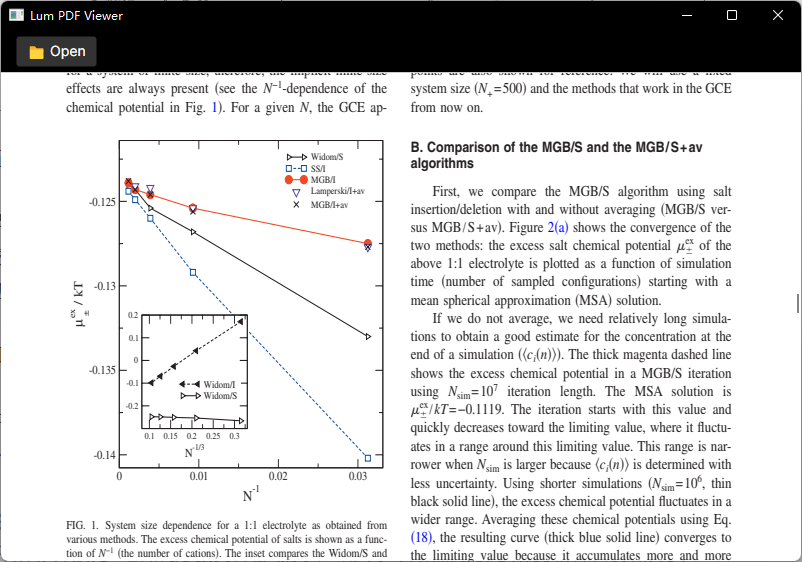 ## 五、最后 尽管AOT启动速度快,但我们还是更偏向与单文件的压缩发布,因为AOT发布后,加上非托管库,体积会比较大。而单文件压缩将非托管后一起打包后大小仅不到26Mb,一个小巧的PDF阅读器就诞生了,是不是很棒。 如果你对本文建议或想法,欢迎随时交流。请关注我们的公众号`萤火初芒`,以后会和大家分享更多有趣内容,一起学习交流进步。项目代码已全部开源 (https://github.com/LdotJdot/LumPdfiumViewerSlim),欢迎给个星星。  


![洛谷 P11345 [KTSC 2023 R2] 基地简化 题解](http://www.itfaba.com/wp-content/themes/kemi/timthumb.php?src=http://www.itfaba.com/wp-content/themes/kemi/img/random/1.jpg&w=218&h=124&zc=1)
