

线性布局案例:商品列表
大家好,我是潘Sir,持续分享IT技术,帮你少走弯路。《鸿蒙应用开发从入门到项目实战》系列文章持续更新中,陆续更新AI+编程、企业级项目实战等原创内容、欢迎关注!
ArkUI提供了丰富的系统组件,用于制作鸿蒙原生应用APP的UI,本文通过简单案例演示如何使用Column和Row组件实现线性布局。
一、商品列表
1.1 效果图
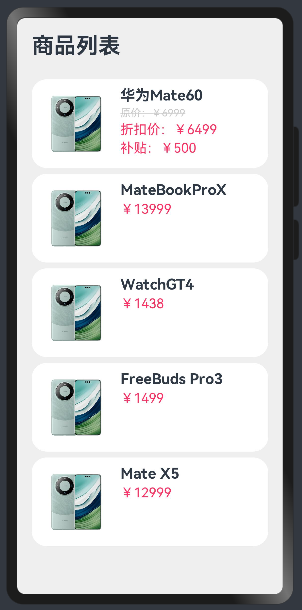
相关知识:
线性布局
渲染控制:循环渲染、条件渲染
1.2 实现代码
拷贝素材
将mate60.png拷贝到resources/base/media目录
在pages/layout/linear下新建ProductListPage.ets文件
1.2.1 先实现静态界面
界面分析
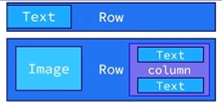
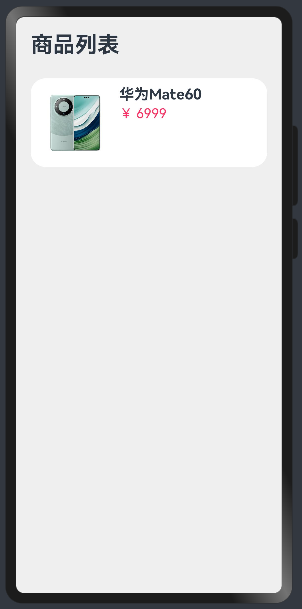
@Entry @Component struct ProductListPage { build() { Column({ space: 8 }) { // 标题 Row() { Text('商品列表') .fontSize(30) .fontWeight(FontWeight.Bold) } .width('100%') .margin({ bottom: 20 }) // 商品列表 Row({ space: 10 }) { Image($r('app.media.mate60')) .width(100) Column({ space: 4 }) { Text('华为Mate60') .fontSize(20) .fontWeight(FontWeight.Bold) Text('¥ 6999') .fontColor('#F36') .fontSize(18) } .height('100%') .alignItems(HorizontalAlign.Start) } .width('100%') .backgroundColor('#FFF') .borderRadius(20) .height(120) .padding(10) } .width('100%') .height('100%') .backgroundColor('#EFEFEF') .padding(20) } } 效果图
1.2.2 数据循环渲染
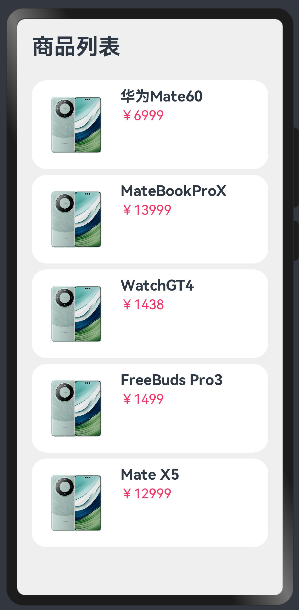
由于列表项都相同,因此可以直接复制实现界面。但是这会导致大量重复代码,因此考虑使用循环渲染实现,先定义数据类型Item,接着定义数据items,再使用foreach循环渲染数据到界面,将写死的数据从items里取出即可。
class Item { name: string //小写 image: ResourceStr price: number constructor(name: string, image: ResourceStr, price: number) { this.name = name this.image = image this.price = price } } @Entry @Component struct ProductListPage { // 商品数据 private items: Array<Item> = [ new Item('华为Mate60', $r('app.media.mate60'),6999), new Item('MateBookProX', $r('app.media.mate60'),13999), new Item('WatchGT4', $r('app.media.mate60'),1438), new Item('FreeBuds Pro3', $r('app.media.mate60'),1499), new Item('Mate X5', $r('app.media.mate60'),12999) ] build() { Column({ space: 8 }) { // 标题 Row() { Text('商品列表') .fontSize(30) .fontWeight(FontWeight.Bold) } .width('100%') .margin({ bottom: 20 }) // 商品列表 ForEach( this.items, (item:Item)=>{ Row({ space: 10 }) { Image(item.image) .width(100) Column({ space: 4 }) { Text(item.name) .fontSize(20) .fontWeight(FontWeight.Bold) Text('¥'+item.price) .fontColor('#F36') .fontSize(18) } .height('100%') .alignItems(HorizontalAlign.Start) } .width('100%') .backgroundColor('#FFF') .borderRadius(20) .height(120) .padding(10) } ) } .width('100%') .height('100%') .backgroundColor('#EFEFEF') .padding(20) } } 效果图
1.2.3 数据条件渲染
有的商品参加打折活动,会多一个折扣价,因此需要根据商品是否打折显示不同的价格信息。
首先修改商品数据类型,添加折扣discount字段;然后再打折商品上添加折扣价;最后再通过条件渲染界面。
class Item { name: string //小写 image: ResourceStr price: number discount: number constructor(name: string, image: ResourceStr, price: number, discount: number = 0) { this.name = name this.image = image this.price = price this.discount = discount } } @Entry @Component struct ProductListPage { // 商品数据 private items: Array<Item> = [ new Item('华为Mate60', $r('app.media.mate60'),6999, 500), new Item('MateBookProX', $r('app.media.mate60'),13999), new Item('WatchGT4', $r('app.media.mate60'),1438), new Item('FreeBuds Pro3', $r('app.media.mate60'),1499), new Item('Mate X5', $r('app.media.mate60'),12999) ] build() { Column({ space: 8 }) { // 标题 Row() { Text('商品列表') .fontSize(30) .fontWeight(FontWeight.Bold) } .width('100%') .margin({ bottom: 20 }) // 商品列表 ForEach( this.items, (item:Item)=>{ Row({ space: 10 }) { Image(item.image) .width(100) Column({ space: 4 }) { if(item.discount){ Text(item.name) .fontSize(20) .fontWeight(FontWeight.Bold) Text('原价:¥' + item.price) .fontColor('#CCC') .fontSize(14) .decoration({type: TextDecorationType.LineThrough}) Text('折扣价:¥' + (item.price - item.discount)) .fontColor('#F36') .fontSize(18) Text('补贴:¥' + item.discount) .fontColor('#F36') .fontSize(18) }else { Text(item.name) .fontSize(20) .fontWeight(FontWeight.Bold) Text('¥'+item.price) .fontColor('#F36') .fontSize(18) } } .height('100%') .alignItems(HorizontalAlign.Start) } .width('100%') .backgroundColor('#FFF') .borderRadius(20) .height(120) .padding(10) } ) } .width('100%') .height('100%') .backgroundColor('#EFEFEF') .padding(20) } } 效果图
《鸿蒙应用开发从入门到项目实战》系列文章持续更新中,陆续更新AI+编程、企业级项目实战等原创内容,防止迷路,欢迎关注!



![洛谷 P11345 [KTSC 2023 R2] 基地简化 题解](http://www.itfaba.com/wp-content/themes/kemi/timthumb.php?src=http://www.itfaba.com/wp-content/themes/kemi/img/random/2.jpg&w=218&h=124&zc=1)
