

说明:文中出现的具体视频链接、演示路径、用户名、端口号等均为示例,读者需按需替换。
1. 需求
(1)使用 chrome-devtools-mcp 打开 https://www.bilibili.com/video/BV1fEsfzrEc7/?spm_id_from=333.1007.tianma.1-2-2.click&vd_source=7c7ae5cc1dbb2453e1eb43950a4264a3 (读者需按需替换)
(2)暂停视频播放
(3)查找并点击该视频页面的所有“点击查看”文本元素
2. 背景与试验
上述需求要查看哔站视频评论,必须要登录才行。但是,通常 AI 工具调用浏览器完成任务时,不支持持久化用户数据目录(不支持指定 Data 目录,每次都会创建临时目录)。
在 Cursor 2.x 中,通过 Cursor 2.x 内置的 Browser Automation 和 chrome-devtools mcp 两种方式进行试验。每次调用 Chrome 打开哔站后,都无法直接查看评论,更无法点击评论中的“点击查看”文本元素。每次都需要手动登录哔站后,才能完成点击评论中的“点击查看”文本元素的任务,这很繁琐。
3. 问题:Cursor 2.x 能否在启动 Chrome 时指定 Data 目录?
(1)Browser Automation 方式不支持指定 Data 目录。
经 Cursor 深入研究 https://github.com/worryzyy/awesome-cursor-download ,已经核实 Browser Automation 方式不支持持久化用户数据目录(每次创建临时目录)。
(2)chrome-devtools mcp 方式支持指定 Data 目录。
经 Cursor 深入研究 https://developer.chrome.com/blog/chrome-devtools-mcp ,chrome-devtools mcp 有两种方式支持指定 Data 目录。
一种方式是在 C:UsersWinUser01.cursormcp.json(读者需按需替换)添加类似下面的配置:
{ "mcpServers": { "chrome-devtools": { "command": "npx", "args": [ "chrome-devtools-mcp@latest", "--chrome-arg=--user-data-dir=C:\Users\YourName\chrome-mcp-profile" ] } } } 另一种方式是先启动携带 --remote-debugging-port=9222、指定 Data 目录的 Chrome 进程(可以是安装版、也可以是便携版),并在 C:UsersWinUser01.cursormcp.json(读者需按需替换)添加类似下面的配置,让 Cursor 2.x 直接调用已经启动的 Chrome 进程来完成任务:
{ "mcpServers": { "chrome-devtools": { "command": "npx", "args": [ "chrome-devtools-mcp@latest", "--browser-url=http://127.0.0.1:9222" ] } } } 4. 实现步骤
下面,将在 Cursor 2.x 环境、以便携版 Chrome 为例,说明具体的实现步骤。
(1)先安装配置好 Cursor 2.x。打开 Cursor 2.x 的“Settings”窗口,左侧“Tools & MCP”,右侧点击“New MCP Server”编辑 C:UsersWinUser01.cursormcp.json(读者需按需替换),添加以下内容,端口号为 9222(可以根据需要更改,但必须与后面 start-chrome-and-cursor-OK.vbs 中启动 Chrome 进程时指定的端口号一致):
{ "mcpServers": { "chrome-devtools": { "command": "npx", "args": [ "chrome-devtools-mcp@latest", "--browser-url=http://127.0.0.1:9222" ] } } } 配置好之后,需要关闭 Cursor、并结束内存中的所有 Cursor 进程,再重启 Cursor 才能生效。重启后,打开“Settings”窗口,左侧“Tools & MCP”右侧“Installed MCP Servers”下面显示有“chrome-devtools (27 tools enabled)”、且末尾开关显示绿色开启状态,便说明 chrome-devtools MCP 已经配置成功。

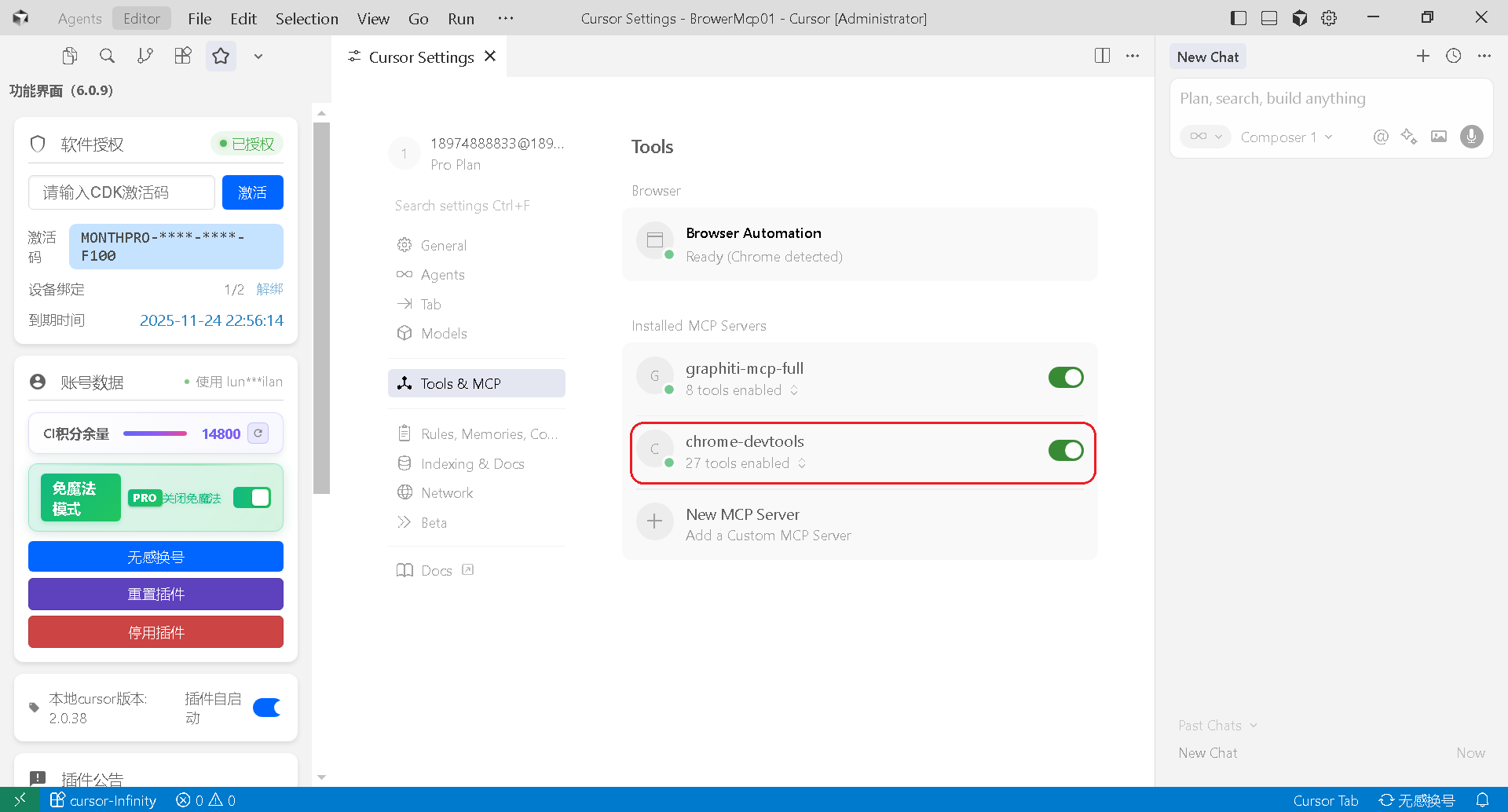
(2)由于现在版本的 Cursor 在关闭后,Cursor 进程还会残留在内存中(估计是bug),同时为避免内存中存在多个 Chrome 进程的相互干扰,所以下面在启动 Chrome、Cursor 进程前,强制结束内存中的所有 Chrome、Cursor 进程。
为了便于自动化快捷操作,可以编制 start-chrome-and-cursor-OK.vbs(文件内容附后)来完成先结束内存中的所有 Chrome、Cursor 进程,再启动定制的 Chrome 便携版进程、再启动 Cursor 进程。
注意:启动的 "d:WinUser.datProgram FilesChromePortableChrome-binchrome.exe" 为便携版 Chrome 路径,"d:WinUser.datProgram FilesChromePortableData" 为指定的用户 Data 目录,读者需按需替换。
5. 使用 start-chrome-and-cursor-OK.vbs 实现需求
接下来,创建一个项目目录,比如:e:CursorMcpBrowerMcp01(读者需按需替换),将 start-chrome-and-cursor-OK.vbs 文件拷贝到该目录,双击 start-chrome-and-cursor-OK.vbs 便可以自动结束内存中的所有 Chrome、Cursor 进程,再启动定制的 Chrome 便携版进程、再启动 Cursor 进程。
用 Cursor 2.x 打开项目目录,在 Chat 窗口中选择 Agent 模式,模型选择 Sonnet 4.5 即可,直接输入下面的任务发送即可自动完成(视频网址请按需替换):
(1)使用 chrome-devtools-mcp 打开 https://www.bilibili.com/video/BV1fEsfzrEc7/?spm_id_from=333.1007.tianma.1-2-2.click&vd_source=7c7ae5cc1dbb2453e1eb43950a4264a3 (读者需按需替换)
(2)暂停视频播放
(3)查找并点击该视频页面的所有“点击查看”文本元素
6. chrome-devtools MCP 查找“点击查看”元素,并进行点击
下图是 chrome-devtools MCP 查找到的第一个“点击查看”元素(红框标注):
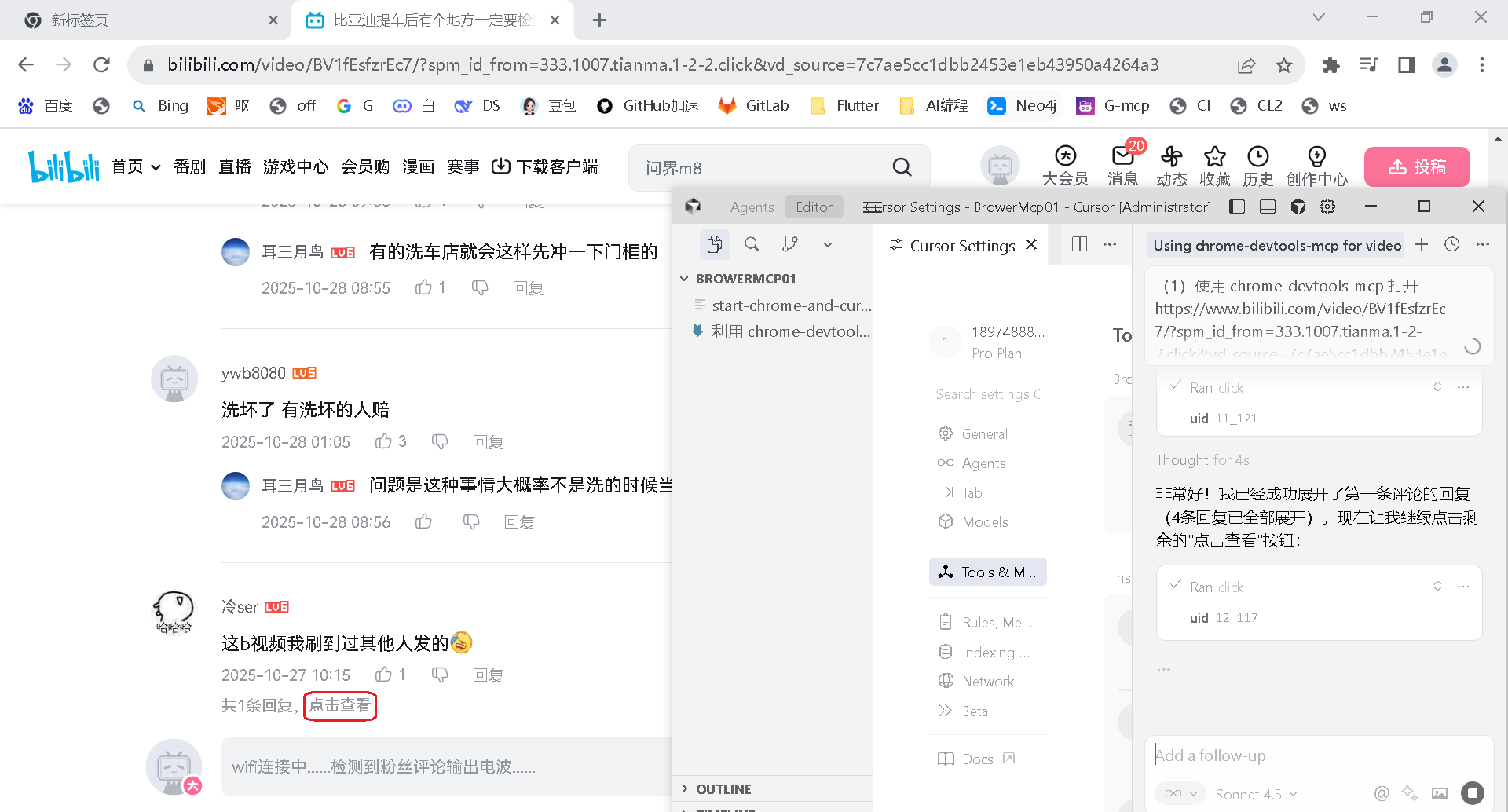
下图是 chrome-devtools MCP 已经自动点击查找到的“点击查看”元素、展开评论(红框标注),总共查找到并自动点击3个“点击查看”元素(红框标注):

7. 附:start-chrome-and-cursor-OK.vbs 文件内容
' start-chrome-and-cursor-OK.vbs Option Explicit ' 全局对象变量 Dim objWMI, objShell, objFSO Dim chromePath, cursorPath, currentDir Dim maxWaitTime, waitInterval ' 配置参数 maxWaitTime = 10000 ' 最大等待时间(毫秒) waitInterval = 200 ' 检查间隔(毫秒) ' 创建必要对象 Set objWMI = GetObject("winmgmts:\.rootcimv2") Set objShell = CreateObject("WScript.Shell") Set objFSO = CreateObject("Scripting.FileSystemObject") ' 获取当前脚本所在目录 currentDir = objFSO.GetParentFolderName(WScript.ScriptFullName) ' 便携版 Chrome 路径和启动参数 chromePath = "d:WinUser.datProgram FilesChromePortableChrome-binchrome.exe" Dim chromeArgs ' 使用下划线 _ 作为行继续符(VBScript 不支持 CMD 的 ^ 符号) chromeArgs = "--user-data-dir=""d:WinUser.datProgram FilesChromePortableData"" " & _ "--disable-background-networking " & _ "--disable-features=CustomizeChromeSidePanel " & _ "--disable-hang-monitor " & _ "--disable-session-crashed-bubble " & _ "--hide-crash-restore-bubble " & _ "--disable-restore-session-state " & _ "--remote-debugging-port=9222" ' ============================================================================ ' 步骤 1: 结束所有 Chrome 进程 ' ============================================================================ Call KillAllProcesses("chrome.exe") Call WaitForProcessesToTerminate("chrome.exe", maxWaitTime) ' ============================================================================ ' 步骤 2: 结束所有 Cursor 进程 ' ============================================================================ Call KillAllProcesses("Cursor.exe") Call WaitForProcessesToTerminate("Cursor.exe", maxWaitTime) ' ============================================================================ ' 步骤 3: 启动便携版 Chrome ' ============================================================================ If Not objFSO.FileExists(chromePath) Then WScript.Quit 1 End If objShell.Run """" & chromePath & """ " & chromeArgs, 1, False WScript.Sleep 3000 ' ============================================================================ ' 步骤 4: 验证 Chrome CDP 连接(可选) ' ============================================================================ Call VerifyChromeCDP() ' ============================================================================ ' 步骤 5: 启动 Cursor ' ============================================================================ cursorPath = FindCursorPath() If cursorPath <> "" Then objShell.Run """" & cursorPath & """ """ & currentDir & """", 1, False WScript.Sleep 1000 End If ' 清理资源 Set objWMI = Nothing Set objShell = Nothing Set objFSO = Nothing WScript.Quit 0 ' ============================================================================ ' 函数: 结束指定名称的所有进程 ' 参数: processName - 进程名称(如 "chrome.exe") ' 返回: 结束的进程数量 ' ============================================================================ Function KillAllProcesses(processName) Dim colProcessList, objItem Dim killedCount killedCount = 0 Set colProcessList = objWMI.ExecQuery("SELECT * FROM Win32_Process WHERE Name = '" & processName & "'") If colProcessList.Count > 0 Then For Each objItem In colProcessList On Error Resume Next objItem.Terminate() If Err.Number = 0 Then killedCount = killedCount + 1 End If On Error Goto 0 Next End If Set colProcessList = Nothing KillAllProcesses = killedCount End Function ' ============================================================================ ' 函数: 等待指定名称的所有进程结束 ' 参数: processName - 进程名称(如 "chrome.exe") ' 参数: maxWaitMs - 最大等待时间(毫秒) ' ============================================================================ Function WaitForProcessesToTerminate(processName, maxWaitMs) Dim elapsedTime, colProcessList elapsedTime = 0 Do While elapsedTime < maxWaitMs Set colProcessList = objWMI.ExecQuery("SELECT * FROM Win32_Process WHERE Name = '" & processName & "'") If colProcessList.Count = 0 Then Set colProcessList = Nothing Exit Function End If Set colProcessList = Nothing WScript.Sleep waitInterval elapsedTime = elapsedTime + waitInterval Loop End Function ' ============================================================================ ' 函数: 查找 Cursor 可执行文件路径 ' 返回: Cursor.exe 的完整路径,未找到则返回空字符串 ' ============================================================================ Function FindCursorPath() Dim paths(4) Dim i, testPath ' 定义可能的 Cursor 安装路径 paths(0) = objShell.ExpandEnvironmentStrings("%LOCALAPPDATA%") & "ProgramscursorCursor.exe" paths(1) = objShell.ExpandEnvironmentStrings("%APPDATA%") & "LocalProgramscursorCursor.exe" paths(2) = "C:Program FilesCursorCursor.exe" paths(3) = objShell.ExpandEnvironmentStrings("%ProgramFiles(x86)%") & "CursorCursor.exe" ' 尝试从注册表获取路径 On Error Resume Next testPath = objShell.RegRead("HKEY_CURRENT_USERSoftwareMicrosoftWindowsCurrentVersionUninstallCursorInstallLocation") If Err.Number = 0 And testPath <> "" Then testPath = testPath & "Cursor.exe" If objFSO.FileExists(testPath) Then FindCursorPath = testPath Exit Function End If End If On Error Goto 0 ' 检查每个路径 For i = 0 To UBound(paths) If objFSO.FileExists(paths(i)) Then FindCursorPath = paths(i) Exit Function End If Next FindCursorPath = "" End Function ' ============================================================================ ' 函数: 验证 Chrome CDP 连接(静默验证) ' ============================================================================ Function VerifyChromeCDP() Dim httpObj, url On Error Resume Next Set httpObj = CreateObject("MSXML2.XMLHTTP") url = "http://localhost:9222/json/version" httpObj.Open "GET", url, False httpObj.setTimeouts 2000, 2000, 2000, 2000 httpObj.Send Set httpObj = Nothing On Error Goto 0 End Function 


![洛谷 P11345 [KTSC 2023 R2] 基地简化 题解](http://www.itfaba.com/wp-content/themes/kemi/timthumb.php?src=http://www.itfaba.com/wp-content/themes/kemi/img/random/1.jpg&w=218&h=124&zc=1)
