

大家好,我是潘Sir,持续分享IT技术,帮你少走弯路。《鸿蒙应用开发从入门到项目实战》系列文章持续更新中,欢迎关注!
随着鸿蒙(HarmonyOS)生态发展,越来越多的APP需要进行鸿蒙适配。本文以快递APP寄件中的收货地址识别功能为例,探讨HarmonyOS鸿蒙版本的开发和适配。
一、需求分析
1、应用场景
随着互联网的发展,网购已成为大家日常生活中不可或缺的一部分。网购涉及到发货和收货操作,为了简化操作、提升APP的使用效率,各大APP都融入了AI能力。在AI赋能下,从传统的文字输入交互方式,逐步拓展到人脸识别、指纹识别、图片识别、语言识别等方式,降低了APP使用门槛的同时极大提高了交互效率。
本文研究以支付宝APP里边的“菜鸟裹裹”寄件场景为例,通过粘贴文字或者图片识别进行收货地址自动识别填充。在鸿蒙操作系统(HarmonyOS)上借助HarmonyOS SDK 提供的AI能力,开发鸿蒙原生应用APP功能,完成上述功能。
ps:相信大家都寄过快递,如果没操作过可以先了解一下。
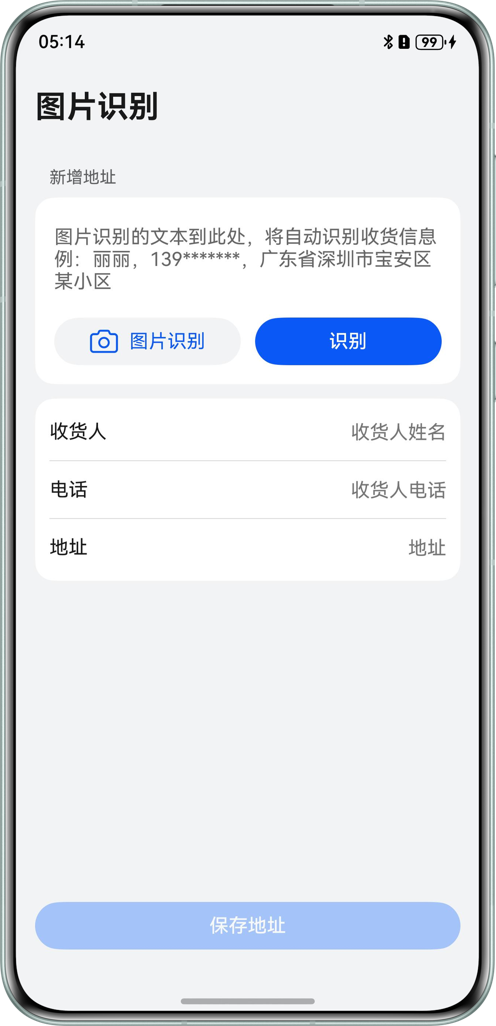
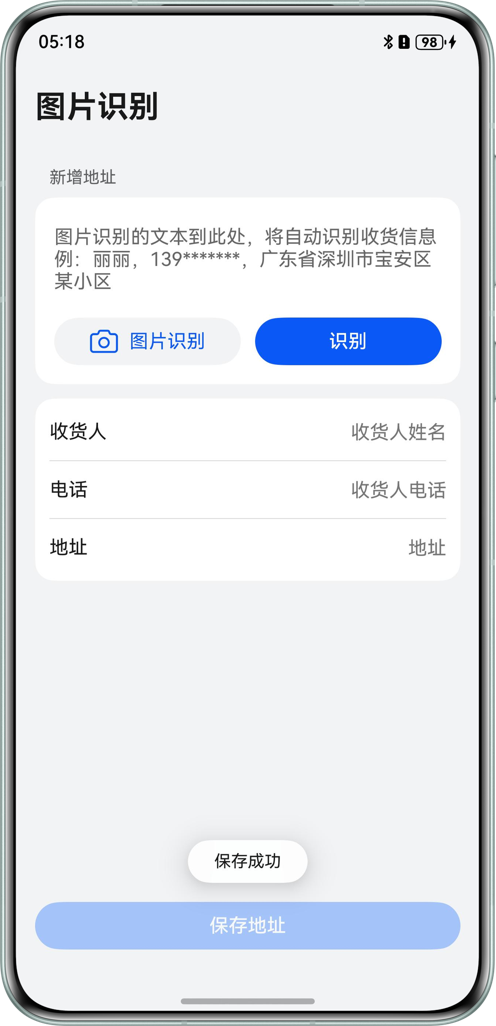
2、实现效果
| 主页 | 拍照 | 识别 | 保存 |
|---|---|---|---|
 |
 |
 |
 |
ps:由于编写的提取规则中,名字为2-4个中文,因此上边的名字“潘Sir”包含了1个英文,故未识别正确。如果改为2-4个汉字则可以正确识别。这就是传统的用规则来匹配的弊端,更好的方法是使用AI大模型或NLP工具来提取地址信息。
读者可以直接运行提供的代码查看效果。由于使用了视觉服务,需要真机运行。
使用说明:
- 点击
图片识别按钮,拉起选择图片获取方式的弹窗,选择拍照方式,通过对要识别的文字进行拍照获得要识别的图片。也可以选择相册方式,在图库中直接选择需要识别的图片。 - 识别出图片包含的文本信息后,会自动将文本内容填充到文本输入框。
- 点击`地址解析按钮,会将文本框中的信息提取为结构化数据,显示到按钮下方的列表中。
- 点击
保存地址按钮,提示保存成功,文本框旧的内容会自动清空。
3、技术分析
基于HarmonyOS SDK提供的基础视觉服务(CoreVisionKit),使用@kit.CoreVisionKit提供的通用文字识别能力,通过拍照(CameraPicker)或者相册(PhotoViewPicker)方式,将印刷品文字(如:收货信息)转化为图像信息,再利用文字识别技术将图像信息转化为设备可以使用的文本字符,最后可以根据实际业务规则提取结构化数据。
二、界面制作
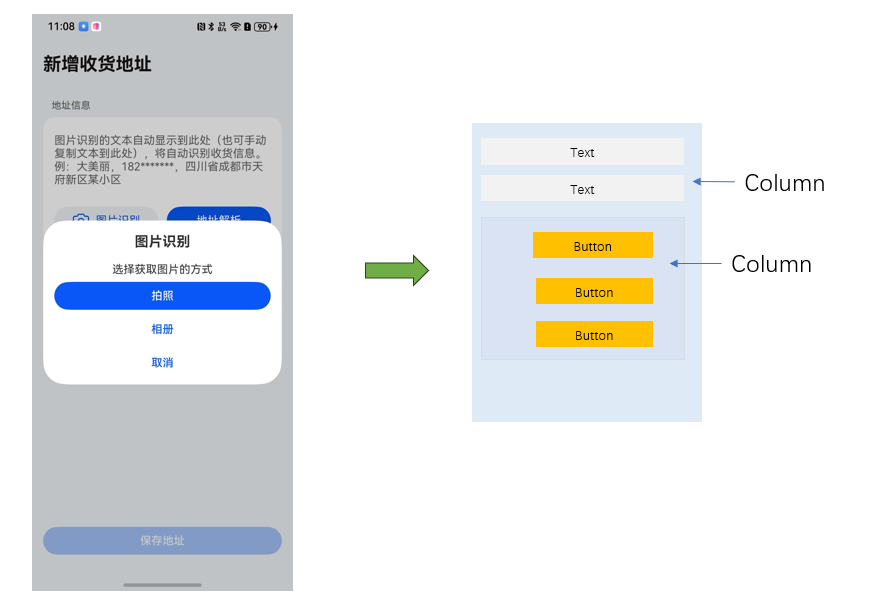
1、布局分析
主界面布局分析:

弹窗界面布局分析:
2、界面制作
开发环境说明:DevEco Studio5.0.4 Release、 HarmonyOS5.0.4(API 16)
通过DevEco Studio创建项目,项目名称为:ExtractAddress,删除Index.ets文件中默认的代码。
2.1 制作主界面
为了便于代码复用和程序扩展,将收货人信息的界面上的每一行显示的数据,抽取为一个对象,该对象类型为ConsigneeInfo类。在ets目录下新建viewmodel目录,新建DataModel.ets文件,内容如下:
// 收货人信息界面视图模型 @ObservedV2 export class ConsigneeInfo { label: ResourceStr; //标签名称 placeholder: ResourceStr; //提示语 @Trace value: string; //输入值 constructor(label: ResourceStr, placeholder: ResourceStr, value: string) { this.label = label; this.placeholder = placeholder; this.value = value; } } 有了此类,在主界面上就只需要实例化3个对象,通过列表进行循环渲染即可,避免了重复臃肿的代码。接下来制作主界面,Index.ets文件内容如下:
import { ConsigneeInfo} from '../viewmodel/DataModel'; @Entry @Component struct Index { @State consigneeInfos: ConsigneeInfo[] = []; //收货人信息界面视图 @State saveAvailable: boolean = false; //保存按钮是否可用 aboutToAppear(): void { this.consigneeInfos = [ new ConsigneeInfo('收货人', '收货人姓名', ''), new ConsigneeInfo('电话', '收货人电话', ''), new ConsigneeInfo('地址', '地址', ''), ]; } build() { RelativeContainer() { // 界面主体内容 Column() { Text('新增收货地址') .id('title') .width('100%') .font({ size: 26, weight: 700 }) .fontColor('#000000') .opacity(0.9) .height(64) .align(Alignment.TopStart) Text('地址信息') .width('100%') .padding({ left: 12, right: 12 }) .font({ size: 14, weight: 400 }) .fontColor('#000000') .opacity(0.6) .lineHeight(19) .margin({ bottom: 8 }) // 识别或填写区域 Column() { TextArea({ placeholder: '图片识别的文本自动显示到此处(也可手动复制文本到此处),将自动识别收货信息。例:大美丽,182*******,四川省成都市天府新区某小区', }) .height(100) .margin({ bottom: 12 }) .backgroundColor('#FFFFFF') Row({ space: 12 }) { Button() { Row({ space: 8 }) { Text() { SymbolSpan($r('sys.symbol.camera')) .fontSize(26) .fontColor(['#0A59F2']) } Text('图片识别') .fontSize(16) .fontColor('#0A59F2') } } .height(40) .layoutWeight(1) .backgroundColor('#F1F3F5') Button('地址解析') .height(40) .layoutWeight(1) } .width('100%') .padding({ left: 16, right: 16, }) } .backgroundColor('#FFFFFF') .borderRadius(16) .padding({ top: 16, bottom: 16 }) // 收货人信息 Column() { List() { //列表渲染,避免重复代码 ForEach(this.consigneeInfos, (item: ConsigneeInfo) => { ListItem() { Row() { Text(item.label) .fontSize(16) .fontWeight(400) .lineHeight(19) .textAlign(TextAlign.Start) .fontColor('#000000') .opacity(0.9) .layoutWeight(1) TextArea({ placeholder: item.placeholder, text: item.value }) .type(item.label === '收货人' ? TextAreaType.PHONE_NUMBER : TextAreaType.NORMAL) .fontSize(16) .fontWeight(500) .lineHeight(21) .padding(0) .borderRadius(0) .textAlign(TextAlign.End) .fontColor('#000000') .opacity(0.9) .backgroundColor('#FFFFFF') .heightAdaptivePolicy(TextHeightAdaptivePolicy.MIN_FONT_SIZE_FIRST) .layoutWeight(2) .onChange((value: string) => { item.value = value; //判断保存按钮是否可用(均填写即可保存) if (this.consigneeInfos[0].value && this.consigneeInfos[1].value && this.consigneeInfos[2].value) { this.saveAvailable = true; } else { this.saveAvailable = false; } }) } .width('100%') .constraintSize({ minHeight: 48 }) .justifyContent(FlexAlign.SpaceBetween) } }, (item: ConsigneeInfo, index: number) => JSON.stringify(item) + index) } .width('100%') .height(LayoutPolicy.matchParent) .scrollBar(BarState.Off) .divider({ strokeWidth: 0.5, color: '#33000000' }) .padding({ left: 12, right: 12, top: 4, bottom: 4 }) .borderRadius(16) .backgroundColor('#FFFFFF') } .borderRadius(16) .margin({ top: 12 }) .constraintSize({ minHeight: 150, maxHeight: '50%' }) .backgroundColor('#FFFFFF') } // 保存按钮 if (this.saveAvailable) { // 可用状态 Button("保存地址", { stateEffect: true }) .width('100%') .alignRules({ bottom: { anchor: '__container__', align: VerticalAlign.Bottom } }) } else { // 不可用状态 Button("保存地址", { stateEffect: false }) .width('100%') .alignRules({ bottom: { anchor: '__container__', align: VerticalAlign.Bottom } }) .opacity(0.4) .backgroundColor('#317AFF') } } .height('100%') .width('100%') .padding({ left: 16, right: 16, top: 24, bottom: 24 }) .backgroundColor('#F1F3F5') .alignRules({ left: { anchor: '__container__', align: HorizontalAlign.Start } }) .expandSafeArea([SafeAreaType.SYSTEM], [SafeAreaEdge.TOP, SafeAreaEdge.BOTTOM]) } } 该界面中通过RelativeContainer进行相对布局,保存按钮通过相对布局定位到界面底部,主要内容区域使用Column布局。在aboutToAppear周期函数中,初始化收货人列表数据,界面中通过List列表渲染完成显示。至此,主界面的静态效果就实现了。
但主界面代码依然较多,可以考虑将List列表渲染部分抽取为单独的组件,提取到单独文件中。在ets目录下新建components目录,在该目录下新建ConsigneeInfoItem.ets文件,将主界面列表渲染部分的内容拷贝进去并进改造。
ConsigneeInfoItem.ets文件内容:
import { ConsigneeInfo } from '../viewmodel/DataModel'; @Builder export function ConsigneeInfoItem(item: ConsigneeInfo, checkAvailable?: () => void) { Row() { Text(item.label) .fontSize(16) .fontWeight(400) .lineHeight(19) .textAlign(TextAlign.Start) .fontColor('#000000') .opacity(0.9) .layoutWeight(1) TextArea({ placeholder: item.placeholder, text: item.value }) .type(item.label === '收货人' ? TextAreaType.PHONE_NUMBER : TextAreaType.NORMAL) .fontSize(16) .fontWeight(500) .lineHeight(21) .padding(0) .borderRadius(0) .textAlign(TextAlign.End) .fontColor('#000000') .opacity(0.9) .backgroundColor('#FFFFFF') .heightAdaptivePolicy(TextHeightAdaptivePolicy.MIN_FONT_SIZE_FIRST) .layoutWeight(2) .onChange((value: string) => { item.value = value; //判断保存按钮是否可用(均填写即可保存) checkAvailable?.(); }) } .width('100%') .constraintSize({ minHeight: 48 }) .justifyContent(FlexAlign.SpaceBetween) } Index.ets改造
import {ConsigneeInfoItem} from '../components/ConsigneeInfoItem' ... ListItem() { //抽取为组件 ConsigneeInfoItem(item,() => { if (this.consigneeInfos[0].value && this.consigneeInfos[1].value && this.consigneeInfos[2].value) { this.saveAvailable = true; } else { this.saveAvailable = false; } }) } ... 主界面效果实现完成
2.2 图片识别弹窗
点击“图片识别”按钮,弹出获取图片方式选择框。接下来完成该界面制作。
为了弹出框管理更加方面,封装弹窗口管理工具类PromptActionManager,在ets目录新建utils目录,新建PromptActionManager.ets文件,内容如下:
import { promptAction } from '@kit.ArkUI'; /** * Dialog管理类 */ export class PromptActionManager { static ctx: UIContext; static contentNode: ComponentContent<Object>; static options: promptAction.BaseDialogOptions; static setCtx(ctx: UIContext) { PromptActionManager.ctx = ctx; } static setContentNode(contentNode: ComponentContent<Object>) { PromptActionManager.contentNode = contentNode; } static setOptions(options: promptAction.BaseDialogOptions) { PromptActionManager.options = options; } static openCustomDialog() { if (!PromptActionManager.contentNode) { return; } try { PromptActionManager.ctx.getPromptAction().openCustomDialog( PromptActionManager.contentNode, PromptActionManager.options ) } catch (error) { } } static closeCustomDialog() { if (!PromptActionManager.contentNode) { return; } try { PromptActionManager.ctx.getPromptAction().closeCustomDialog( PromptActionManager.contentNode ) } catch (error) { } } } 不同的弹出界面可能需要不同的样式控制,因此为弹出框的控制定义参数类型Params。在DataModel.ets文件中新加类Params,代码如下:
... export class Params { uiContext: UIContext; textAreaController: TextAreaController; //识别信息的TextArea loadingController: CustomDialogController; //识别过程中的加载提示框 constructor(uiContext: UIContext, textAreaController: TextAreaController, loadingController: CustomDialogController) { this.uiContext = uiContext; this.textAreaController = textAreaController; this.loadingController = loadingController; } } 接下来制作弹出框组件界面,在components目录新建dialogBuilder.ets文件
import { Params } from '../viewmodel/DataModel' import { PromptActionManager } from '../common/utils/PromptActionManager' @Builder export function dialogBuilder(params: Params): void { Column() { Text('图片识别') .font({ size: 20, weight: 700 }) .lineHeight(27) .margin({ bottom: 16 }) Text('选择获取图片的方式') .font({ size: 16, weight: 50 }) .lineHeight(21) .margin({ bottom: 8 }) Column({ space: 8 }) { Button('拍照') .width('100%') .height(40) Button('相册') .width('100%') .height(40) .fontColor('#0A59F2') .backgroundColor('#FFFFFF') Button('取消') .width('100%') .height(40) .fontColor('#0A59F2') .backgroundColor('#FFFFFF') .onClick(() => { PromptActionManager.closeCustomDialog(); }) } } .size({ width: 'calc(100% - 32vp)', height: 235 }) .borderRadius(32) .backgroundColor('#FFFFFF') .padding(16) } 修改Index.ets文件,为“图片识别”按钮绑定事件,点击时弹出自定义对话框。
... import { PromptActionManager } from '../common/utils/PromptActionManager'; import { ComponentContent, LoadingDialog } from '@kit.ArkUI'; import { ConsigneeInfo,Params} from '../viewmodel/DataModel'; import { dialogBuilder } from '../components/dialogBuilder'; ... private uiContext: UIContext = this.getUIContext(); private resultController: TextAreaController = new TextAreaController(); private loadingController: CustomDialogController = new CustomDialogController({ builder: LoadingDialog({ content: '图片识别中' }), autoCancel: false }); private contentNode: ComponentContent<Object> = new ComponentContent(this.uiContext, wrapBuilder(dialogBuilder), new Params(this.uiContext, this.resultController, this.loadingController)); ... //图片识别按钮 .onClick(() => { PromptActionManager.openCustomDialog(); }) 静态界面制作完成。
三、功能实现
1、通用功能封装
创建OCR识别管理类OCRManager,需要用到HarmonyOS SDK中的AI和媒体两类Kit。在utils目录下新建OCRManager.ets,封装相关方法。
import { textRecognition } from '@kit.CoreVisionKit'; import { camera, cameraPicker } from '@kit.CameraKit'; import { photoAccessHelper } from '@kit.MediaLibraryKit'; import { image } from '@kit.ImageKit'; import { fileIo as fs } from '@kit.CoreFileKit'; export class OCRManager { static async recognizeByCamera(ctx: Context, loadingController: CustomDialogController): Promise<string> { // The configuration information of cameraPicker let pickProfile: cameraPicker.PickerProfile = { cameraPosition: camera.CameraPosition.CAMERA_POSITION_UNSPECIFIED }; try { let result: cameraPicker.PickerResult = await cameraPicker.pick(ctx, [cameraPicker.PickerMediaType.PHOTO], pickProfile); if (!result || !result.resultUri) { return ''; } loadingController.open(); return OCRManager.recognizeText(result.resultUri); } catch (error) { loadingController.close(); return ''; } } static async recognizeByAlbum(loadingController: CustomDialogController): Promise<string> { try { let photoPicker: photoAccessHelper.PhotoViewPicker = new photoAccessHelper.PhotoViewPicker(); let photoResult: photoAccessHelper.PhotoSelectResult = await photoPicker.select({ MIMEType: photoAccessHelper.PhotoViewMIMETypes.IMAGE_TYPE, maxSelectNumber: 1, isPhotoTakingSupported: false }); if (!photoResult || photoResult.photoUris.length === 0) { return ''; } loadingController.open(); return OCRManager.recognizeText(photoResult.photoUris[0]); } catch (error) { loadingController.close(); return ''; } } static async recognizeText(uri: string): Promise<string> { // Visual information to be recognized. // Currently, only the visual information of the PixelMap type in color data format RGBA_8888 is supported. let visionInfo: textRecognition.VisionInfo = { pixelMap: await OCRManager.getPixelMap(uri) }; let result: textRecognition.TextRecognitionResult = await textRecognition.recognizeText(visionInfo); visionInfo.pixelMap.release(); return result.value; } static async getPixelMap(uri: string): Promise<image.PixelMap> { // Convert image resources to PixelMap let fileSource = await fs.open(uri, fs.OpenMode.READ_ONLY); let imgSource: image.ImageSource = image.createImageSource(fileSource.fd); let pixelMap: image.PixelMap = await imgSource.createPixelMap(); fs.close(fileSource); imgSource.release(); return pixelMap; } } 2、拍照识别
弹出框界面,为“拍照”按钮绑定事件
import { common } from '@kit.AbilityKit' import { OCRManager } from '../common/utils/OCRManager' //拍照按钮 .onClick(async () => { PromptActionManager.closeCustomDialog(); let text: string = await OCRManager.recognizeByCamera(params.uiContext.getHostContext() as common.UIAbilityContext, params.loadingController); params.loadingController.close(); if (text) { params.textAreaController.deleteText(); params.textAreaController.addText(text); } }) 主界面,修改TextArea,传入controller并双向绑定识别结果。
... @State ocrResult: string = ''; ... //TextArea controller: this.resultController, text: $$this.ocrResult 拍照识别功能实现。
3、相册识别
弹出框界面,为“相册”按钮绑定事件
//相册按钮 .onClick(async () => { PromptActionManager.closeCustomDialog(); let text: string = await OCRManager.recognizeByAlbum(params.loadingController); params.loadingController.close(); if (text) { params.textAreaController.deleteText(); params.textAreaController.addText(text); } }) 相册识别功能实现。
4、地址解析
主界面的“地址解析”按钮,将通过图片识别或手工输入的地址信息,解析显示到对应的输入框中。
封装地址解析类AddressParse,本案例使用正则表达式进行匹配。后续可以使用大模型或NLP工具进行解析。
在utils目录下新建AddressParse.ets文件
import { ConsigneeInfo } from '../../viewmodel/DataModel'; export class AddressParse { static nameBeforeRegex = /([wu4e00-u9fa5]+[s,,。]+|[s,,。]*)([u4e00-u9fa5]{2,4})[s,,。]+/; static nameAfterRegex = /[s,,。]+([u4e00-u9fa5]{2,4})[s,,。]*/; static nameTagRegex = /(?:收货人|收件人|姓名|联系人)[::s]*([u4e00-u9fa5]{2,4})/i; static namePlainRegex = /[u4e00-u9fa5]{2,4}/; static phoneRegex = /(1[3-9]d[s-]?d{4}[s-]?d{4})|(d{3,4}[s-]?d{7,8})|((d{2,4})[s-]?d{4,8})|(+d{1,4}[s-]?d{5,15})/g; static phoneHyphenRegex = /[()s-]/g; static addressKeywords = ['收货地址', '收件地址', '配送地址', '所在地区', '位置', '地址', '寄至', '寄往', '送至', '详细地址']; static addressNoiseWords = ['收货人', '收件人', '姓名', '联系人', '电话', '手机', '联系方式', ':', ':', ',', ',']; static extractInfo(text: string, info: ConsigneeInfo[]): ConsigneeInfo[] { const baseText: string = text.replace(/s+/g, ' ') const phoneResult: string = AddressParse.extractPhone(baseText); const nameResult: string = AddressParse.extractName(baseText, phoneResult); const addressResult: string = AddressParse.extractAddress(baseText, phoneResult, nameResult); info[0].value = nameResult; info[1].value = phoneResult.replace(AddressParse.phoneHyphenRegex, ''); info[2].value = addressResult; return info; } static extractPhone(text: string): string { const phoneMatch: RegExpMatchArray | null = text.match(AddressParse.phoneRegex); return phoneMatch ? phoneMatch[0] : ''; } static extractName(text: string, phone: string): string { let name = ''; // Try to extract from the label const nameFromTag = text.match(AddressParse.nameTagRegex); if (nameFromTag) { name = nameFromTag[1]; } // Try to extract before or after the phone if (!name && phone) { const phoneIndex = text.indexOf(phone); const beforePhone = text.substring(0, phoneIndex); const nameBefore = beforePhone.match(AddressParse.nameBeforeRegex); if (nameBefore) { name = nameBefore[2]; } if (!name) { const afterPhone = text.substring(phoneIndex + phone.length); const nameAfter = afterPhone.match(AddressParse.nameAfterRegex); if (nameAfter) { name = nameAfter[1]; } } } // Try to extract 2-4 Chinese characters directly if (!name) { const nameMatch = text.match(AddressParse.namePlainRegex); if (nameMatch) { name = nameMatch[0]; } } return name; } static extractAddress(text: string, phone: string, name: string): string { for (const keyword of AddressParse.addressKeywords) { const keywordIndex = text.indexOf(keyword); if (keywordIndex !== -1) { const possibleAddress = text.substring(keywordIndex + keyword.length).trim(); // Clean up the beginning punctuation const cleanedAddress = possibleAddress.replace(/^[::,,。、s]+/, ''); if (cleanedAddress.length > 5) { return cleanedAddress; } } } // Try to remove name and phone number let cleanedText = text; if (name) { cleanedText = cleanedText.replace(name, ''); } if (phone) { cleanedText = cleanedText.replace(phone, ''); } // Remove common distracting words AddressParse.addressNoiseWords.forEach(word => { cleanedText = cleanedText.replace(word, ''); }); // Extract the longest text segment that may contain an address const segments = cleanedText.split(/[s,,。;;]+/).filter(seg => seg.length > 4); if (segments.length > 0) { // The segment containing the address key is preferred const addressSegments = segments.filter(seg => seg.includes('省') || seg.includes('市') || seg.includes('区') || seg.includes('县') || seg.includes('路') || seg.includes('街') || seg.includes('号') || seg.includes('栋') || seg.includes('单元') ); if (addressSegments.length > 0) { return addressSegments.join(' '); } // Otherwise select the longest segment return segments.reduce((longest, current) => current.length > longest.length ? current : longest, ''); } // Finally, return the entire text return cleanedText; } } 在主文件中调用地址解析方法,修改Index.ets文件
import { AddressParse } from '../common/utils/AddressParse'; ... //地址解析按钮 .onClick(() => { if (!this.ocrResult || !this.ocrResult.trim()) { this.uiContext.getPromptAction().showToast({ message: $r('app.string.empty_toast') }); return; } this.consigneeInfos = AddressParse.extractInfo(this.ocrResult, this.consigneeInfos); }) 5、保存地址
为保存按钮绑定事件,清空界面数据并提示保存结果。
修改Index.ets文件,封装clearConsigneeInfos模拟保存操作后清空数据。
... // 保存地址,清空内容 clearConsigneeInfos() { for (const item of this.consigneeInfos) { item.value = ''; } this.ocrResult = ''; } ... //保存地址按钮 .onClick(() => { if (this.consigneeInfos[0].value && this.consigneeInfos[1].value && this.consigneeInfos[2].value) { this.uiContext.getPromptAction().showToast({ message: '保存成功' }); this.clearConsigneeInfos(); } }) 至此,功能完成。
《鸿蒙应用开发从入门到项目实战》系列文章持续更新中,欢迎关注!



![洛谷 P11345 [KTSC 2023 R2] 基地简化 题解](http://www.itfaba.com/wp-content/themes/kemi/timthumb.php?src=http://www.itfaba.com/wp-content/themes/kemi/img/random/3.jpg&w=218&h=124&zc=1)
